Setting up Purchasing
Before your team starts buying, give people access, decide which documents need a manager's approval, pick the default tax codes and set how documents are numbered. This is a one-time job for an administrator.
Show the steps for
1. Give people access
- 1Open Settings → Users, edit the user and switch on Purchasing under App access (this company). The Purchasing tile appears on their apps screen.
- 2Decide who approves. Approving and rejecting documents is for users with the manager or admin role. See Approvals.
- 3If buyers should be able to add new vendors themselves, tick Add vendors on their auth group in Settings → Auth Groups.
2. Make sure your vendors exist
Every purchase is made from a vendor. Vendors are business partners: open Business Partners → Vendors to see them.
Vendors come from SAP Business One with their SAP vendor code. Add new vendors in SAP; they appear in Voltix after the next sync.
Add vendors in Business Partners (marked as a vendor). Give each one a vendor code and, if you buy in a foreign currency, their currency.
Add vendors in Business Partners (marked as a vendor). Give each one a vendor code and, if you buy in a foreign currency, their currency.
3. Approvals and default tax codes
Open Settings → Purchasing. The Approvals tab holds the approval switches and the default tax codes.
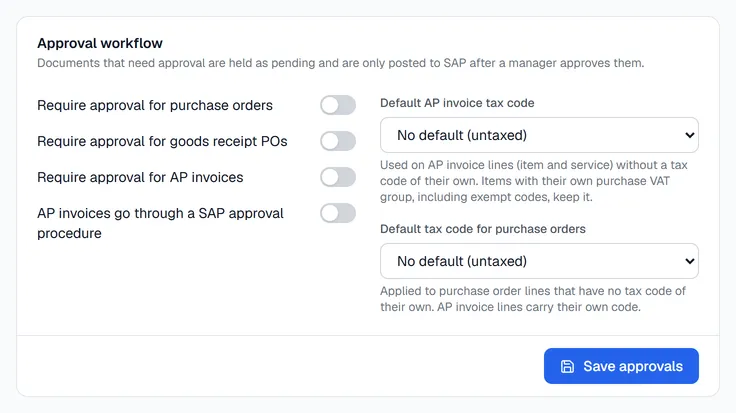
| Setting | What it does |
|---|---|
| Require approval for purchase orders | New purchase orders wait as Waiting for approval until a manager approves them. |
| Require approval for goods receipt POs | The same for goods receipts. Stock is only added once the receipt is approved. |
| Default AP invoice tax code | The purchase tax code used on AP invoice lines that have none of their own, for item and service invoices. An item that carries its own purchase tax code (including an exempt one) keeps it. |
| Default tax code for purchase orders | The tax code given to purchase order lines whose item has no purchase tax code of its own. |
AP invoices go through a SAP approval procedure: switch this on only if your SAP company has an approval procedure for A/P invoices. Voltix then knows that SAP holds the invoice for its own approver instead of posting it straight away.
Click Save approvals when you are done.
4. Numbering
Click the Numbering tab. Each document type gets a number when it is created (drafts have no number yet).

| Column | Meaning |
|---|---|
| Document | Purchase order, Goods receipt PO or AP invoice. |
| Scope | All locations, or one location that numbers its documents separately. |
| Prefix | The letters in front of the number, for example PO. |
| Next number | The number the next document gets. |
| Format | How the number is built. The Next document column shows an example. |
To number one location separately, click Add location override, pick the document and the location, and enter its own prefix and next number. Click Save numbering.
You are ready
Open Purchasing from the apps screen and create your first purchase order.