Projects at a glance
What the Projects app is for, the main screen, and the words it uses.
What Projects is for
Projects keeps track of work that takes more than one step: fitting out a resort, a shop refit, a weekly stock count, the deliveries that follow every sales order. Each project has a board of columns, and each piece of work is an item that moves from column to column until it is done.
Work is assigned to employees (from the Employees app), so staff without a Voltix login can still be given work.
The main screen
Open Projects from the apps screen. Four menus in the top bar switch what you see:
| Menu | Shows |
|---|---|
| Projects | A card for every project with its progress, overdue count, department and manager. Pick Include archived next to the search box to show archived projects too. |
| Portfolio | The health of every active project at once. See Boards, lists and other views. |
| Workload | Planned hours per person per week against their capacity. |
| My tasks | Every item assigned to you, in every project. |
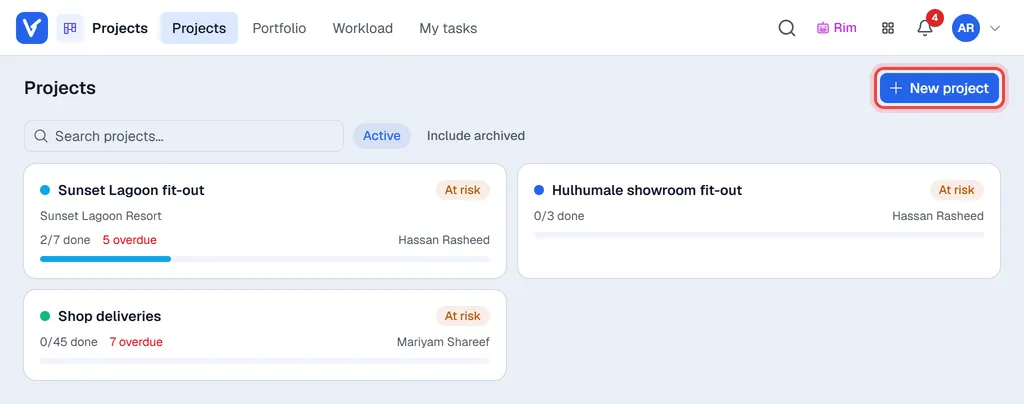
Click a project card to open it. Its views (Board, List, Dashboard and so on, in the menu at the top) are explained in Boards, lists and other views. The back arrow in front of the project name takes you back to all projects.
Words used in Projects
| Word | Meaning |
|---|---|
| Item | One piece of work (a task, a request, an issue...). It has a number such as TASK-0012. |
| Item type | The kind of work, for example Task, Request or Issue. Your company decides the list. |
| Column | A stage on the board, such as To do or In progress. Each column has a category that tells Voltix what it means. |
| Sub-task | A smaller item inside an item, like a checklist line. |
| Milestone | A target date in the project, such as Villas handed over. |
| Member | An employee who may be assigned the project's work. |
Who can do what
- Everyone with access to Projects sees every project and can add items, edit them, move them and comment on them.
- Users with the admin or manager role can also create, edit, archive and delete projects, delete items, add milestones and tags, and see each project's Settings.
- Private items are only visible to their assignees, the person who created them, and admins and managers. See Working with items.