Receiving, delivering, issuing and transferring by scan
One scanning screen for every document. Scan, watch the lines fill, press Validate.
Show the steps for
How every scanning screen works
- 1Open a document from My queue or a list under Queue (or scan its number), or pick a screen under Start.
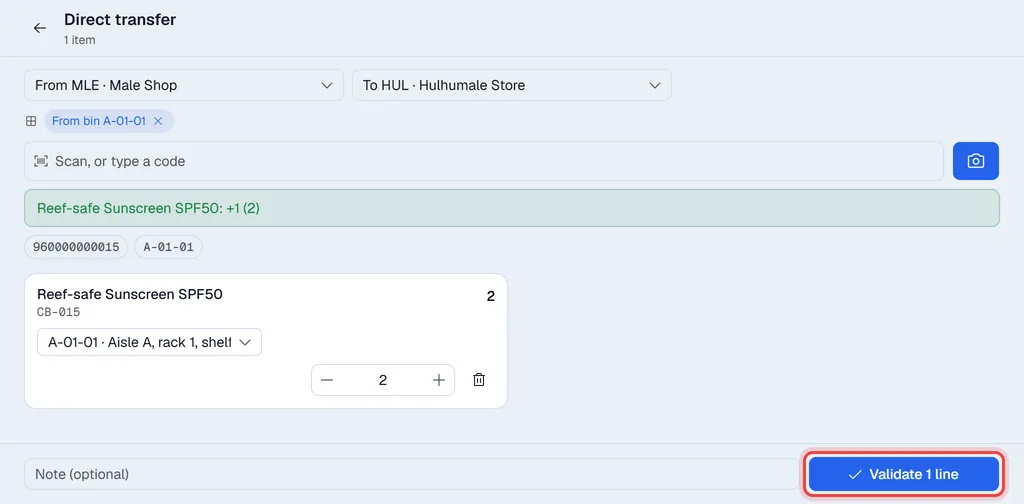
- 2Scan items. Each scan adds what the barcode stands for: one piece, or a whole case when it is the case barcode.
- 3Correct a line with − / + or by typing the quantity. The delete icon removes a line.
- 4Press Validate.
Leaving with the back arrow or a top-bar menu while lines hold scans asks first: nothing has been posted yet, so those scans would be lost.
The line turns green when it matches what the document wants. Each scan beeps and the phone vibrates, so your eyes can stay on the shelf.
Receive
- Receipts: open a purchase order and scan what arrived. Receiving more than was ordered is allowed; you are asked to confirm it.
- Receive without order: pick the warehouse and the receipt type, scan, and enter the cost per unit.
Without a cost, a receipt cannot be validated: the cost moves the item's average cost.
After a receipt you can print labels for what came in.
Deliver
Open a sales order and scan what you hand over. You cannot deliver more than the order wants. When a line is short, Voltix asks why (out of stock, damaged, the customer asked for less, next delivery).
Goods issue
Pick the warehouse and the issue type, scan, and validate.
Transfers
- Transfers: open a transfer request and scan what you send. You cannot send more than was requested.
- Direct transfer: pick the warehouse it comes from and the one it goes to, then scan.
Batches and serial numbers
For an item tracked by batch or serial number, Voltix asks for it after the scan. Scan the batch or serial label, or type it. When you issue or send stock, the batches that expire soonest are suggested first.
A GS1 barcode that carries the batch and expiry fills them in by itself (see Scanner and barcode settings).
Command barcodes
On a handheld you can press buttons by scanning: print the command sheet in Settings → Inventory → Barcodes and scan Validate, Clear the bin or Leave the screen.