Bank accounts
Add and look after the company's bank accounts. Every payment, deposit and statement belongs to one of them.
For companies without sap or with sap business one.
Show the steps for
The Bank Accounts tab

The list shows each account's bank, account number, name, G/L account, currency, SWIFT code and whether it is Active.
Add a bank account
- 1Open Banking → Bank Accounts and click Add bank account.
- 2Fill in the form.
- 3Click Save.
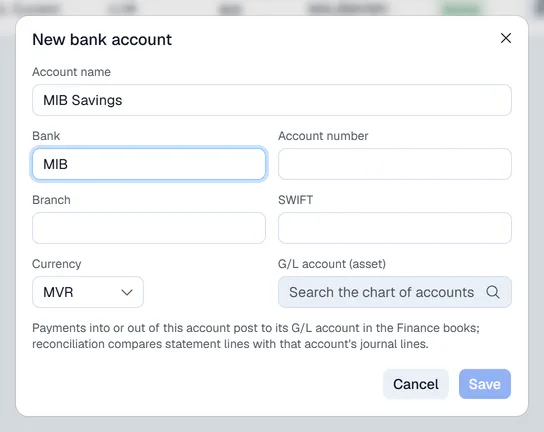
| Field | What to enter |
|---|---|
| Account name | The name you will recognise, for example "BML Current". |
| Bank | The bank's short name or code, for example "BML". Required. |
| Account number | Required. The same bank and account number cannot be added twice. |
| Branch, SWIFT | Optional. |
| Currency | The currency the account is held in. |
| G/L account (asset) | The account in your chart of accounts this bank account posts to. It must be an active asset account that accepts postings. |
Payments into or out of the account post to its G/L account, and reconciliation compares statements with that account's journal lines.
To change an account later, click Edit on its row. Untick Active to stop using an account; inactive accounts are not offered for statements, deposits or rules.
Bring the accounts in from SAP
Bank accounts are the house bank accounts in SAP. Click Sync from SAP to bring in new ones and update the others. You cannot add them by hand in Voltix.
The Currency is read from the account's G/L account when it is synced. Click the currency to change it: a foreign-currency account is reconciled against the foreign-currency amounts of the SAP journal.