Integrations
Connect Voltix to SAP Business One or QuickBooks Desktop. Only administrators can open this section, and most companies set it up once with their Voltix contact.
Open Settings → Integrations. It has three tabs: SAP Business One, QuickBooks Desktop (beta) and Message Owl (SMS) (see SMS).
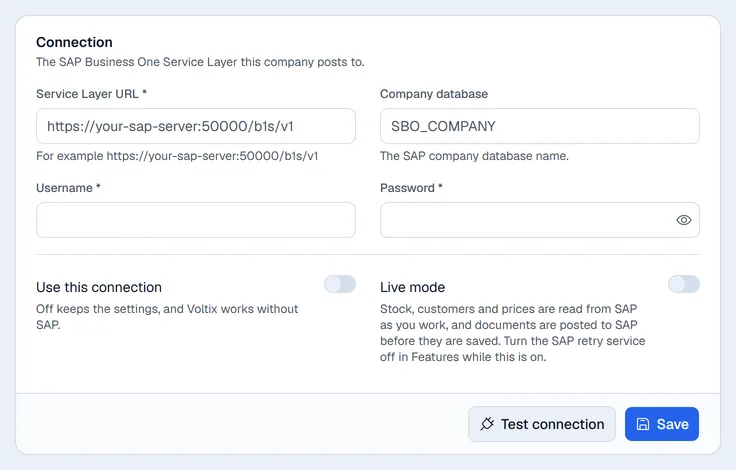
SAP Business One
The Connection card holds the details of your SAP Business One server:
| Field | What it is |
|---|---|
| Service Layer URL | The address of SAP's Service Layer, for example https://your-sap-server:50000/b1s/v1. |
| Company database | The SAP company database name. |
| Username / Password | The SAP user Voltix signs in as. Once saved, the password is never shown again; leave it empty to keep it. |
| Use this connection | Off keeps the settings but Voltix works without SAP. |
| Live mode | Stock, customers and prices are read from SAP as you work, and documents are posted to SAP before they are saved in Voltix. |
Click Test connection to check the details, then Save. The Status card shows whether Voltix is connected.
Sync data (once the connection is in use) opens a window where you tick what to bring over from SAP and choose Changes only or Everything for items and business partners; Start sync shows the progress of each part.
The SAP approvals card links approvers' Voltix users to their SAP users so they can approve SAP documents in Voltix (see SAP approvals). It shows once the connection is in use.
Delete connection removes the saved SAP details.
QuickBooks Desktop (beta)
QuickBooks Desktop connects through a small Voltix agent installed on the computer that runs QuickBooks. The tab shows the agent's status, the expected company file, the agent key the agent uses, and the sync mode (Delta for changes only, Full to read everything again). Your Voltix contact installs and sets up the agent with you.