Work the pipeline
Create opportunities, move them through the stages, log notes and mark them won or lost.
Create an opportunity
- 1On Pipeline, click New opportunity. The form opens on the right.
- 2Fill it in and click Create opportunity.
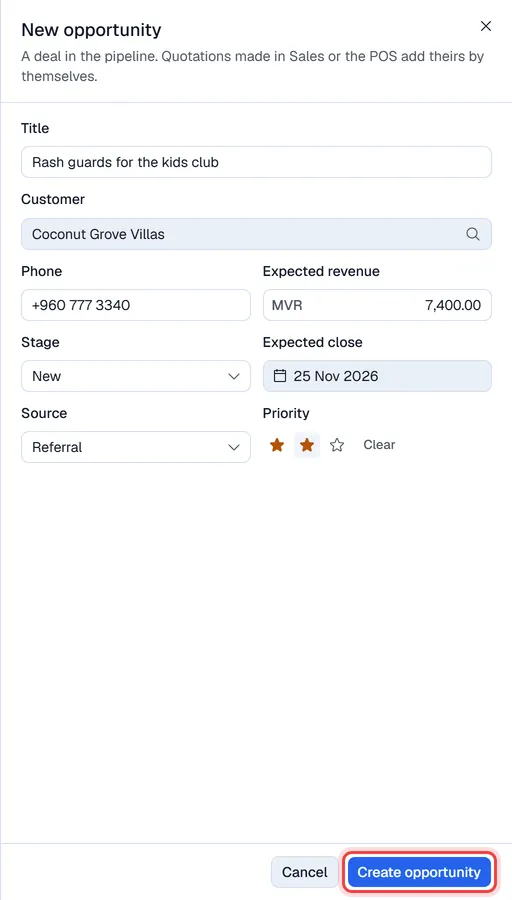
| Field | Notes |
|---|---|
| Title | What the deal is about. The only required field. |
| Customer | Click Pick a business partner and search your customers. For someone who is not a customer yet, type the name in the box under it instead. |
| Phone | Filled from the customer when there is one. |
| Expected revenue | In the customer's currency. For a customer with several currencies, choose it next to the amount. |
| Stage | Where the card starts. |
| Expected close | Used by the calendar view and the forecast. |
| Source | Shown when your company has lead sources. |
| Priority | One to three stars. |
The opportunity is assigned to you.
Move a card to another stage
Drag the card into another column.
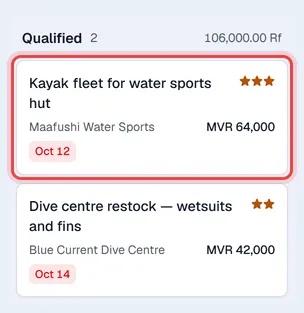
On a phone or tablet, open the card and tap the stage under Stage instead.
On a phone the board shows one stage at a time: tap a stage in the row above the board (the number is how many cards it holds) to see its cards.
Open an opportunity
Click a card. A panel opens on the right; the arrow at its top opens it as a full page.
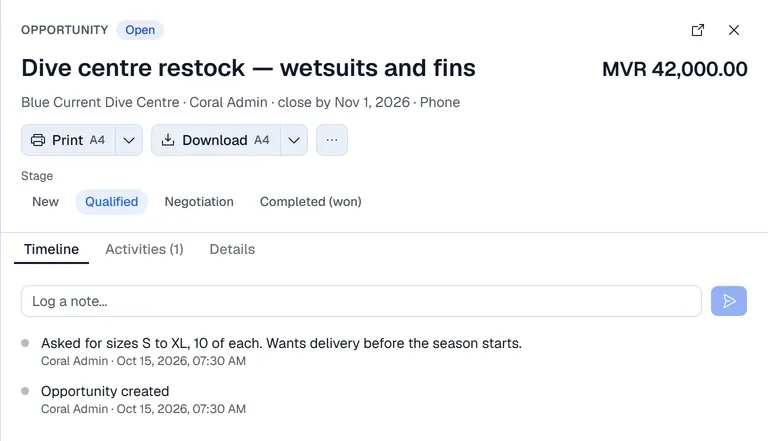
| Part | What it holds |
|---|---|
| Quotation / invoice buttons | When the deal came from a quotation: click one to open that document in Sales. |
| Print / Download | A one-page summary of the deal with its activities and notes (for a meeting or a hand-over). |
| … | Preview PDF, and Mark lost while the deal is open. |
| Stage | Click a stage to move the deal. |
| Timeline tab | Every change, with who made it and when. Type in Log a note… and press Enter to add a note. |
| Activities tab | Planned follow-ups. See Activities. |
| Details tab | The deal's fields; for a linked customer its history (total spent, invoices, last purchase, open credit, rating); Reviews: click Add a review, pick 1 to 5 stars, add a comment and click Save. |
Win a deal
Move the card into the won stage (Completed, marked with a trophy). The deal is marked won and leaves the open pipeline.
Deals that came from a quotation are won automatically when the quotation becomes an invoice.
Lose a deal
- 1Open the opportunity, click … and then Mark lost.
- 2Choose a reason (or No reason) and click Mark lost.
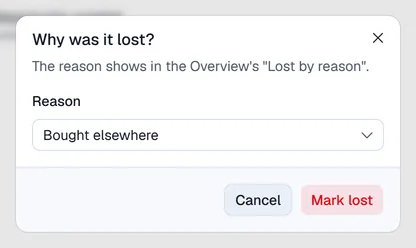
To reopen a lost or won deal, open it and click a stage that is not the won stage.
Find deals
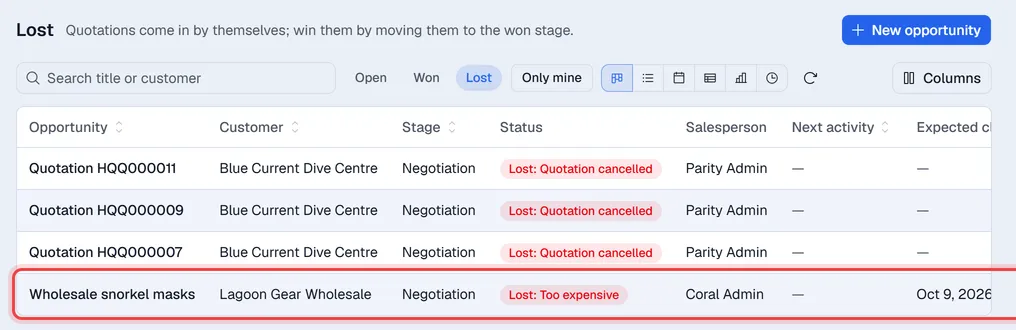
- Open, Won and Lost switch which deals you see. Won and lost deals are shown as a list.
- Only mine shows only the deals assigned to you.
- The search box looks in the title and the customer name.
Other views
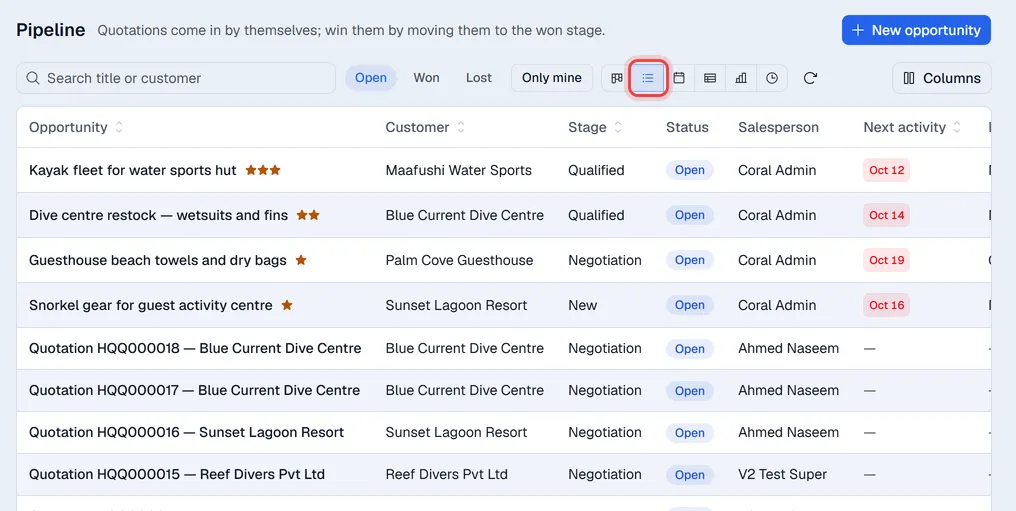
The buttons before the refresh button change how the pipeline is shown:
| View | Shows |
|---|---|
| Board | Columns by stage (the default). |
| List | A table with stage, status, salesperson, next activity and expected close. |
| Calendar | Deals on their expected close date. |
| Pivot | Expected revenue by stage and close month. |
| Graph | Bars by stage, by revenue or by count. |
| Activity grid | Planned activities by deal and activity type. |