Automatic postings
Which documents post to the books by themselves, how the accounts are chosen through G/L account determination, and what to do when a posting fails.
For companies without sap.
What posts automatically
| Document | Entry |
|---|---|
| POS, Sales and subscription invoices | Receivable against sales revenue and output tax. Returns and credit memos the other way round. |
| Payments taken on an invoice | Payment method account against receivable. |
| Receive Payments receipts | Payment method account against receivable. |
| Purchase invoices | Expense (or the line's own account) and input tax against payable. |
| Register cash in / out | The terminal's cash account against the register cash in / cash out account. |
| Banking payments | The bank account against the customer or vendor balance. |
Voiding or cancelling a document reverses its entries. A failed posting never stops the document: the sale is saved and the posting waits in Postings.
G/L account determination
Settings → Finance → G/L account determination decides the accounts. Rules belong to a fiscal year and run in priority order, lowest number first. The first matching rule that names the account wins, so a rule may set only some accounts and leave the rest to the rule that applies to everything.
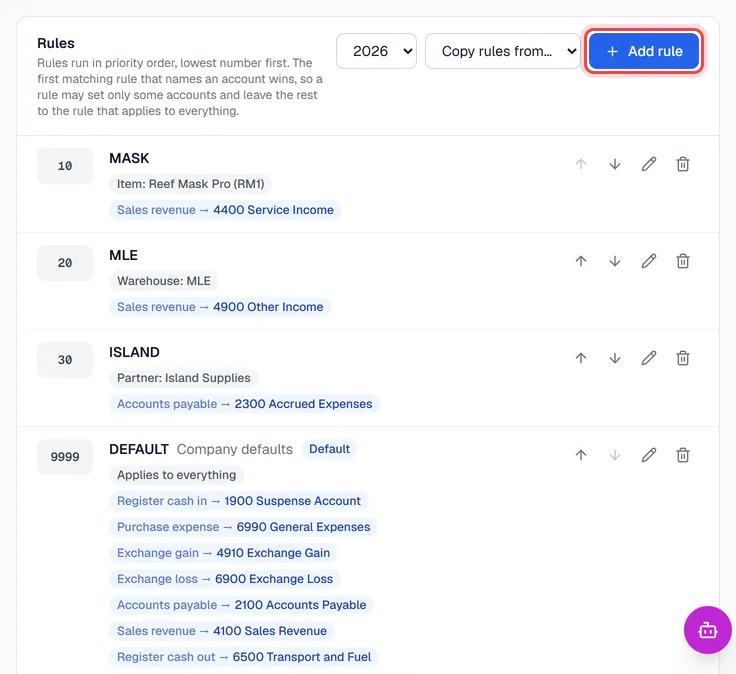
The DEFAULT rule (priority 9999) applies to everything. Add narrower rules above it, for example a different revenue account for one warehouse:
- 1Choose the fiscal year and click Add rule.
- 2Give it a Code, a Description and a Priority (lower runs first). Valid from and Valid to are optional.
- 3Under Applies when, set the conditions: Item category, Item, Warehouse, Partner group, Partner type, Business partner, Tax ID, Tax group, Location or User. Leave a condition on All to ignore it.
- 4Under Accounts, pick only the accounts this rule should decide. Leave the others on Leave to the next rule.
- 5Click Save rule.
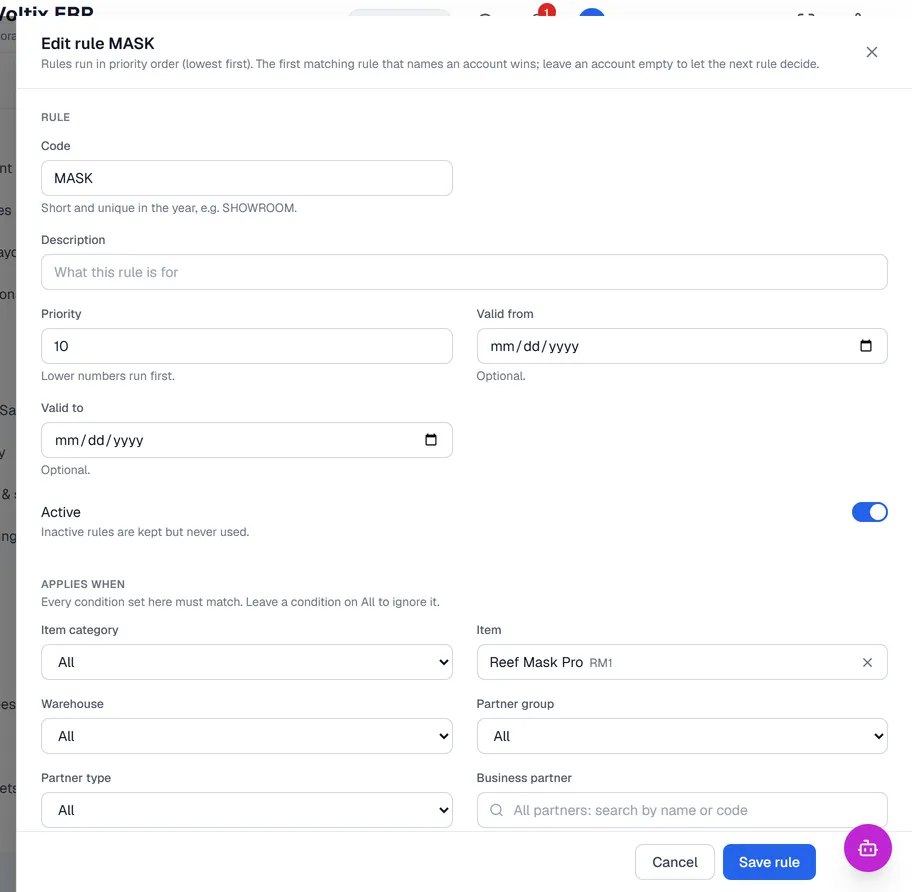
Use the arrows to change the order. When a new fiscal year is created, the latest year's rules are copied into it; Copy rules from… copies another year's rules by hand.
The accounts a rule can set are: Accounts receivable, Sales revenue, Sales returns, Discounts given, Accounts payable, Purchase expense, Register cash in, Register cash out, Rounding differences, Exchange gain, Exchange loss, Bank charges, Retained earnings and Suspense.
Tax accounts
Output and input tax go to the Sales tax account and Purchase tax account of the line's tax group, set in Settings → General → Tax groups.
When a posting fails
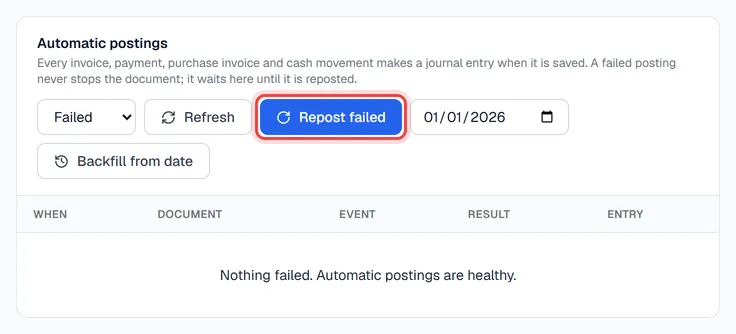
Settings → Finance → Postings shows the latest attempt for each document and opens on Failed. The Result says what is missing, for example a tax group without a purchase tax account, or a payment method without an account on that terminal.
- 1Fix the cause; the message says where.
- 2Click Repost failed (needs Finance: post entries).
Backfill from date posts every invoice, payment, purchase invoice and cash movement from that date that has no entry yet. Documents already posted are skipped.