Inventory at a glance
The Inventory app holds your products, their prices and units, the stock in each warehouse, transfers between warehouses and the stock reports.
Show the steps for
What Inventory is for
Everything you sell or keep in stock is a product in Inventory. The Point of Sale, Sales and Purchasing all use the same products, prices and stock.
In Inventory you:
- create and change products, their units of measure (packs, cases) and their prices,
- see how much stock each warehouse holds,
- request stock from another warehouse and send it across,
- take stock out of a warehouse for other reasons (a goods issue),
- print or download stock, movement and price list reports.
Open Inventory from your home page. You need Inventory switched on under App Access for your user.
The Inventory screen
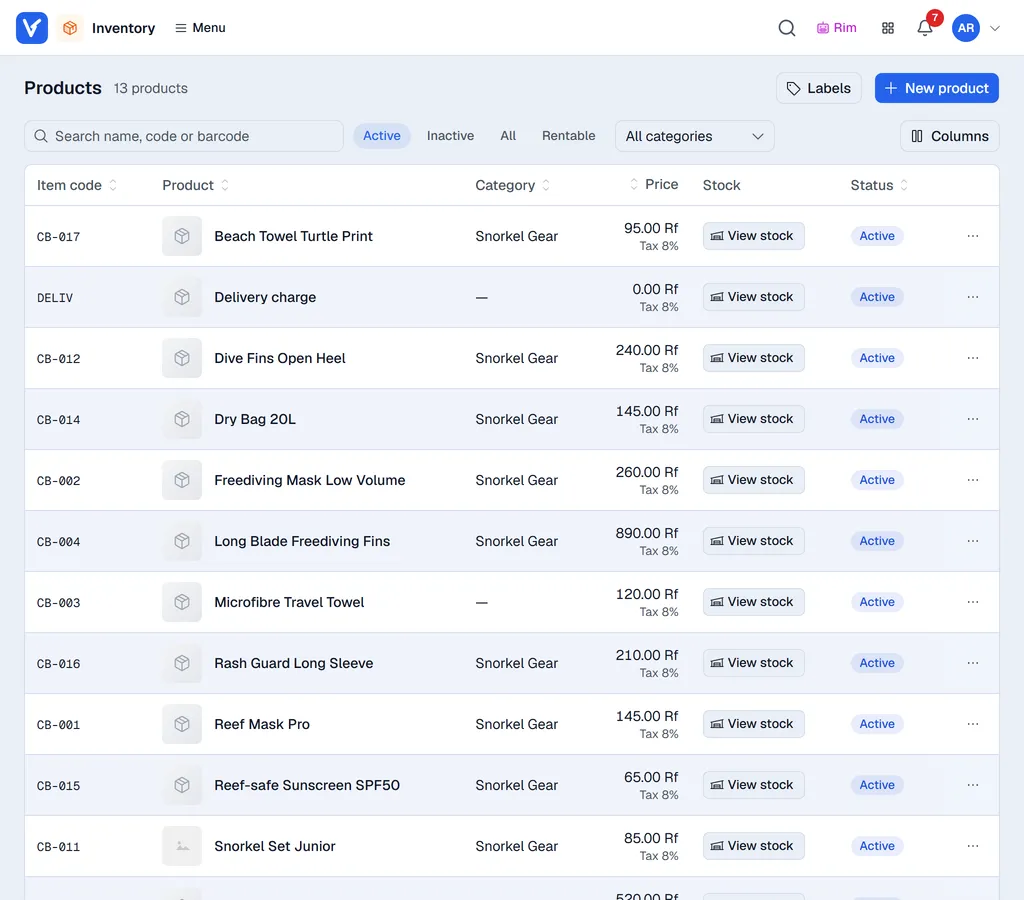
The menus in the top bar are Products, Transfers (Transfer requests and Transfers), Goods issues, Goods receipts, Stock adjustments, Counting (Stock counts and Count schedules) and Reports. You only see the menus you are allowed to use. On a phone they are under Menu.
| Part of the Products screen | What it does |
|---|---|
| Search, status chips and category | Find a product by name, code or barcode. The list shows Active products; pick Inactive or All to see others, and a category to narrow it down. |
| A product row | Click it to open Item details. |
| View stock | Shows the stock of that product in every warehouse. |
| Flags | Small icons for Sellable, Purchase item, Stock tracked, Variants, Batch tracked and Serial tracked. A filled icon means the setting is on. |
| … on a row | Item details, stock, edit, units of measure, variants, stock adjustment, labels, special prices, activate or deactivate, delete. |
| Labels | Prints labels for the products shown. |
| New product | Adds a product. |
Your products, prices and stock come from SAP Business One. The badge Live from SAP is shown next to the title, the list is read-only and New product and the edit actions are hidden. Change items in SAP; Voltix picks the changes up automatically. Use the refresh button to read the latest figures.
Your products and stock are kept in Voltix and you change them here.
Documents
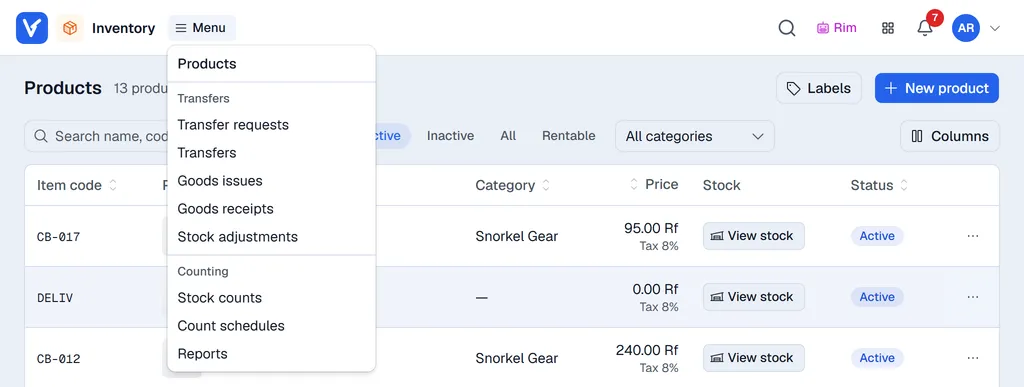
The menus sit in the top bar. When the window is too narrow for all of them, they fold into one Menu button that lists every menu.
| Menu | Use it to |
|---|---|
| Transfers → Transfer requests | Ask for stock to be moved from one warehouse to another. See Transfer requests. |
| Transfers → Transfers | See the transfers made, and move stock straight across with New direct transfer. See Transfers. |
| Goods issues | Take stock out of a warehouse, for example for damage or own use. Only shown to users allowed to make goods issues. See Goods issues. |
| Goods receipts | Bring stock in without a purchase order. See Goods receipts. |
| Stock adjustments | Correct stock and cost (companies without SAP). See Stock adjustments. |
| Counting | Count stock and schedule counts. See Stock counts. |
Every list has a search box, status chips (for example To fulfil, Posted) and a date range. Click a row to open the document in a panel on the right:
- Print and Download make the PDF; the arrow next to them picks A4 or A5.
- Send → By e-mail sends the PDF from your company's mailbox.
- … holds Preview PDF and the actions that fit the document, such as Duplicate, Close request, Reverse receipt or Cancel.
- The tabs show the Lines, the Details and the Attachments.
- The arrow at the top right opens the document as a full page (Open full page).
Where to go next
- Setting up Inventory for administrators.
- Products to create and change products.
- Stock per warehouse to check and correct stock.