Project settings
The Settings view of a project: its columns and what they mean, item types, members, views, recurring tasks and saving it as a template.
Admins and managers see Settings in the menu of every open project.
Board columns
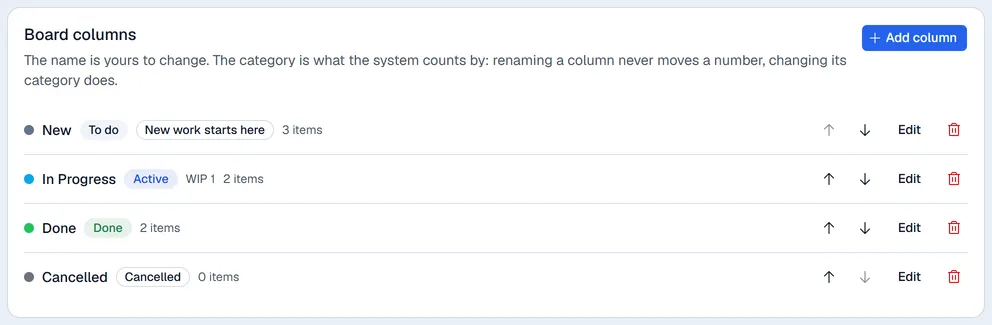
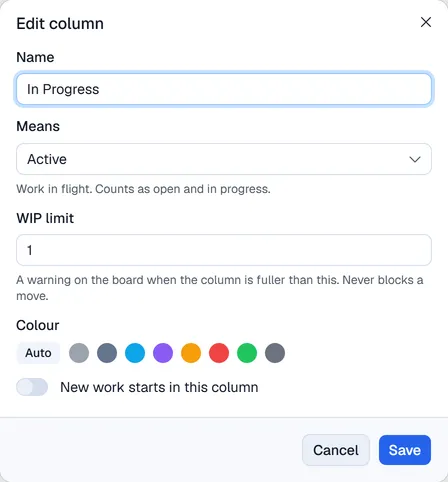
To add a column, click Add column. To change one, click Edit on it. A column has these fields:
| Field | Meaning |
|---|---|
| Name | The name shown on the board. You can rename a column at any time. |
| Means | The category Voltix uses when it counts items: Backlog and To do (open, not started), Active (in progress), Done (finished, counts as completed) or Cancelled (closed, but not counted as done). |
| WIP limit | The most items the column should hold. Above it, the board shows a warning; moves are never blocked. |
| Colour | The colour of the column's dot. Auto follows the category. |
| New work starts in this column | Where new items go when nobody picks a column. |
If you delete a column, its items move to the first remaining column.
Item types
Click the item types this project uses. You manage the list of types itself in Settings → Projects → Item types.
People
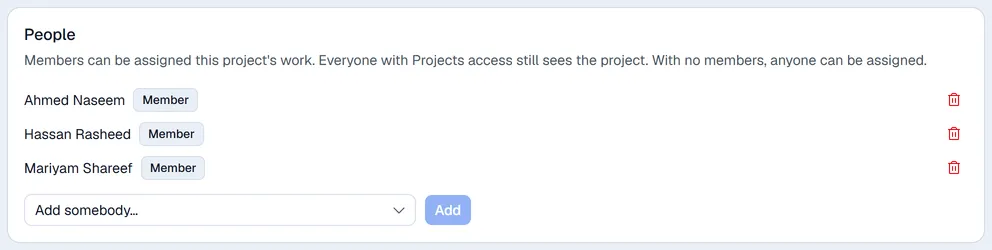
To add a member, choose them under Add somebody… and click Add. Click a member's role to switch it between member and lead.
When a project has members, only they can be assigned its work. With no members, anyone can be assigned. Either way, everyone with Projects access still sees the project. Members only work when Project members is switched on in Settings → Projects.
Views
Leave Use the company default on to use your company's views. Switch it off to choose this project's own views and their order, and click Open first on the view that should open first.
Recurring tasks
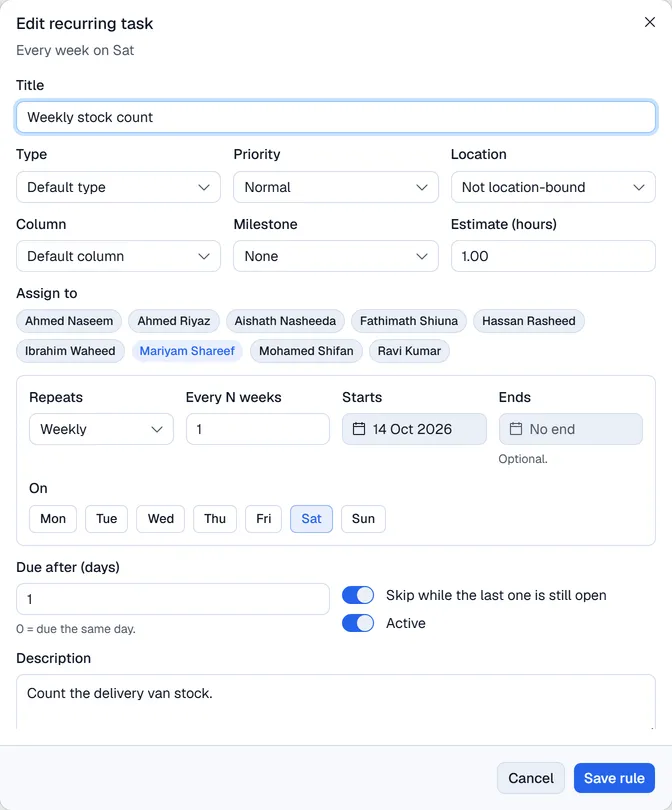
A recurring task is work that comes round again, such as a weekly stock count. Each time it falls due, Voltix adds an ordinary item to the project. Recurring tasks only work when Recurring tasks is switched on in Settings → Projects.
- 1Click New recurring task.
- 2Fill in what the new item should have: Title, Type, Priority, Location, Column, Milestone, Estimate (hours) and Assign to. If you assign nobody, the item goes into the pool.
- 3Set the schedule: - Repeats: daily, weekly or monthly. - Every N days, weeks or months. - Starts, and Ends if the rule should stop. - For weekly rules, pick the days under On. For monthly rules, enter the Day of month. Short months use their last day.
- 4Set Due after (days): how many days after it is added each item is due.
- 5Choose whether to Skip while the last one is still open, and keep Active on.
The list shows when each rule runs next. Click Now to add an item straight away.
Save as template
Enter a Template name to save this project as a project template. The template keeps the project's columns, item types, milestones, open work (with sub-tasks) and views. Dates are kept relative to the project start. To use the template, pick it under Start from a template when you create a new project.