Audit log
See who did what and when in your company: sign-ins, changes to settings and records with their before and after, documents posted or cancelled, approvals and exports.
Voltix keeps a record of every important action in your company. Each entry says who did it, when, in which area of Voltix, what happened and, for a change, what the fields were before and after. Entries can never be edited or removed, and they are kept for two years.
What is recorded
| Area | Examples |
|---|---|
| Sign-in | Signing in, signing out, and failed sign-ins (wrong password, locked or inactive account) |
| Users and access | Users created, changed or removed, their role, module access and companies, permission groups and their members |
| Company settings | Company details, feature switches, integration settings, tax groups, currencies, payment methods, terminals, warehouses, price lists, special prices, numbering |
| Documents | Invoices, quotations and sales orders from the Point of Sale and Sales, Sales drafts posted, purchase orders, goods receipts and AP invoices, journal entries, banking payments, stock adjustments, counts, transfers, goods issues and receipts: created, changed, posted, cancelled, voided, returned, e-mailed |
| Approvals | Sales and purchasing approvals and rejections, SAP approval decisions, and a manager approving a price change or discount at the till (with the manager's name) |
| Exports | Reports downloaded for export, files downloaded, the audit log itself exported |
Find an entry
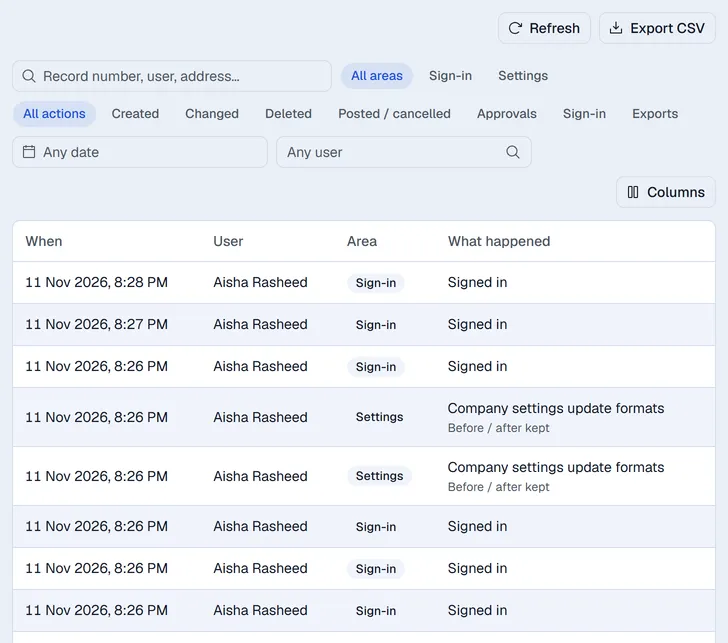
- 1Open Settings → Audit log.
- 2Type in the search box to find a record number, a person or a network address.
- 3Narrow the list with the chips: Area (for example Sales, Point of Sale, Settings) and Action (Created, Changed, Deleted, Posted / cancelled, Approvals, Sign-in, Exports).
- 4Pick a period with the date box and, if you want, one person with Any user.
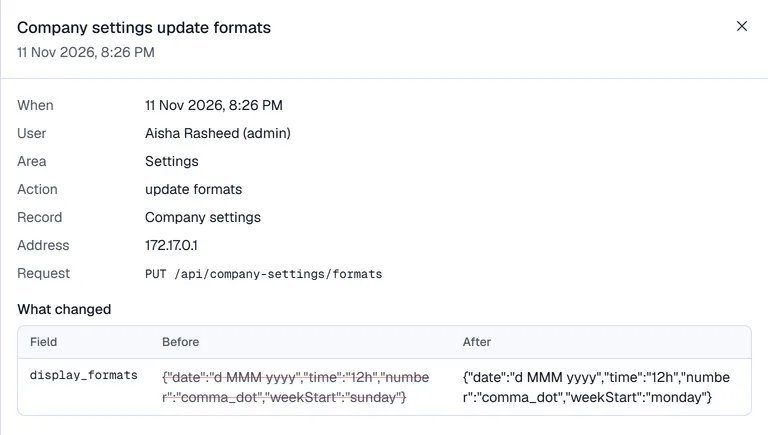
- 5Click an entry to open it on the right. You see who did it, when, from which address and, for a change, a table of every field with its value before and after. For a new record you see the values it was created with.
Export to a spreadsheet
Click Export CSV to download the entries that match your filters (up to the newest 10,000; narrow the dates to export more). The file opens in Excel. Exporting the log is itself recorded.
For Voltix administrators
Super users see the audit log of every company in Control Center → Monitoring → Audit log, with a company picker. Entries that belong to no company (for example a failed sign-in with an unknown address) are listed as Platform.