Products
See an item's details, add and change products, switch their flags on and off, change the price on a price list, and deactivate or delete products you no longer sell.
Show the steps for
With SAP Business One, items are created and changed in SAP. In Voltix the product list is read-only: the flags are shown but locked (managed in SAP) and the edit actions are hidden. What you can do in Voltix is open Item details (click the product row) and, with the Inventory: edit items permission, change the item's price on a price list, attach files and see live stock per warehouse. Only the Rentable flag, when your company uses Rentals, can be set in Voltix. The Add a product section below is for companies that keep their products in Voltix.
Item details
Click a product row (or choose Item details in its … menu) to open Item details.
- General shows the item as your company knows it: item number, barcode, foreign name, item type, item group, category, unit of measure group, inventory, sales and purchasing units, tax group and whether it is managed by batches or serial numbers. The three chips at the top say whether it is an Inventory item, a Sales item and a Purchasing item.
- On the General tab, the Price card shows the item's price on each Price list. The company's first price list opens; choose another list to see its price. With the permission, click the pencil, type the new Unit price and click Save. Only the base price of the item changes; prices per unit of measure are set under Units of measure and prices.
- Inventory data shows the stock in every warehouse you may see: In stock, Committed (reserved by open orders), Ordered (on open purchase orders) and Available. Click Refresh to read it again. View stock on the product row opens this tab straight away.
- Movements (companies without SAP) lists every stock movement of the item and its cost history.
- Attachments holds files for the item, such as a data sheet or a label picture.
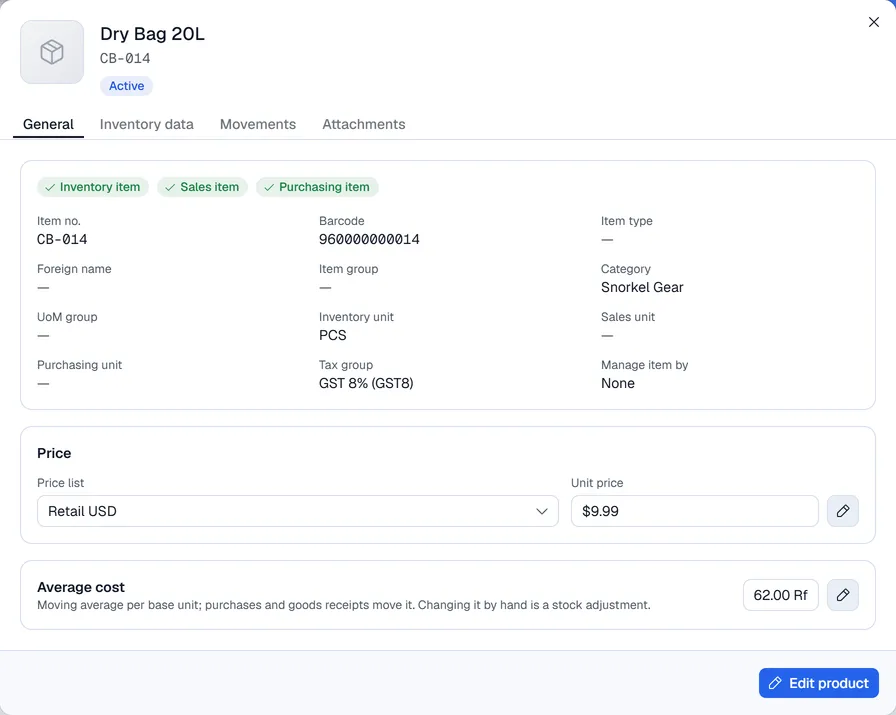
A price change is sent to SAP Business One first; if SAP refuses it, nothing changes in Voltix and you see SAP's message. The Inventory data tab reads the stock live from SAP. The item chips and the units come from the SAP item master and are refreshed by the item sync. Attachments are stored in the company's attachments folder and linked to the item in SAP.
The Inventory data tab shows the last synced stock per warehouse. The first price list's price is also the product's Price shown in the list and used by the POS.
Add a product
- 1In Inventory, click New product.
- 2Fill in Product name, Price and Tax rate (%) (for example 8 for GST 8%).
- 3Optionally enter the Cost price, choose a Category and add a Description.
- 4Enter an internal SKU / item code if you use one.
- 5Enter the Barcode, or click Generate to make one. A barcode is required.
- 6Enter the Opening stock.
- 7Optionally paste an Image address. Without one a default picture is used.
- 8Leave Product is active switched on and click Create product.
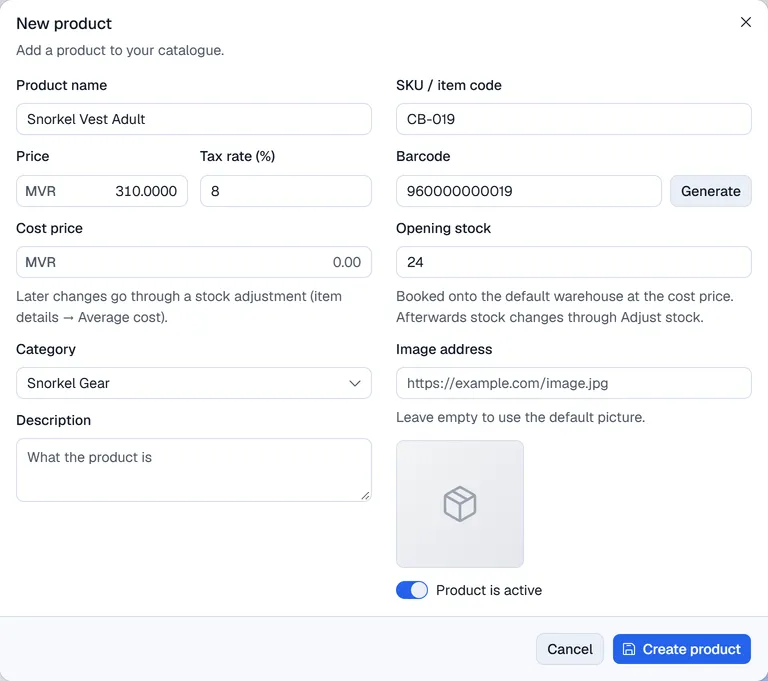
To change a product later, choose Edit product in the … menu on its row (or in Item details), change what you need and click Update product.
The actions on a row
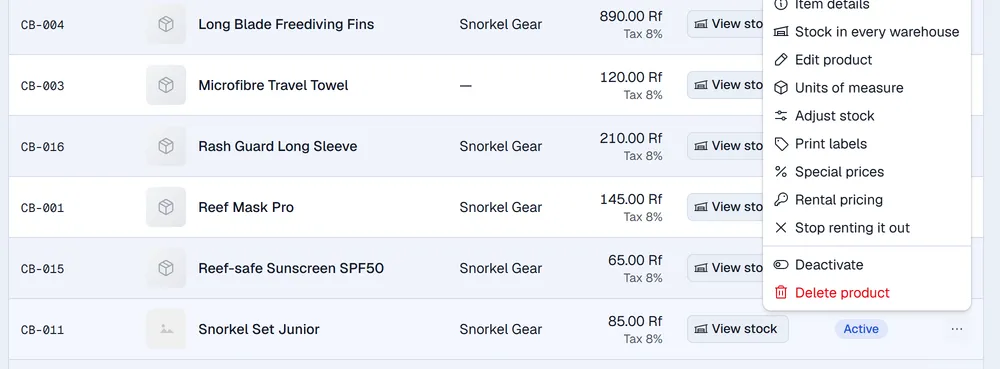
The … menu at the end of a row holds:
| Action | What it does |
|---|---|
| Item details | Everything about the item, its price per price list, stock per warehouse and attachments. |
| Stock in every warehouse | Opens Item details on its stock tab. |
| Edit product | Changes the product. |
| Units of measure | Packs and cases with their own price and barcode. See Units of measure and prices. |
| Variants | Only for products marked as having variants. See Variants. |
| Adjust stock | See Stock per warehouse. |
| Print labels | Prints shelf or product labels. |
| Special prices | Automatic discounts by quantity and date. See Special prices. |
| Rental pricing | Only when your company uses Rentals. |
| Deactivate / Activate | Takes a product out of use or back in. |
| Delete product | Removes the product. |
You only see the actions you are allowed to use.
Flags
The small icons in the Flags column switch a product's behaviour. Click one to see what it means, then click Turn on or Turn off.
| Flag | When it is on |
|---|---|
| Sellable | The product can be sold. Turn it off for items used internally or only bought. |
| Purchase item | The product can be bought in Purchasing (purchase orders, goods receipts, purchase invoices). |
| Stock tracked | Stock is counted for the product. Untracked products never show stock warnings and their stock cannot be adjusted. |
| Variants | The product has variants such as sizes or colours. |
| Batch tracked | Batch numbers are picked on sales, transfers and goods issues. |
| Serial tracked | Serial numbers are picked on sales, transfers and goods issues. |
If your company uses Rentals, a key icon marks Rentable products; clicking it opens the rental pricing. Stop renting it out in the … menu turns it off.
Special prices
Give a lower price for bigger quantities, during a promotion, or to one customer. Choose Special prices in the … menu on the product row. See Special prices.
Deactivate or delete
Deactivate a product you no longer sell but still want in your history and reports: it stays in the list under Inactive and can be activated again.
Delete removes the product permanently and cannot be undone. Prefer deactivating products that have already been sold or bought.