Logging your hours
Enter hours in your weekly grid, add a row for a new task, or time your work from the task itself in Projects.
Enter hours in the grid
- 1Open Timesheets. You start on My timesheet, in the current week.
- 2Click the cell for the task and the day.
- 3Type the hours, for example
2.5for two and a half hours. - 4Click anywhere outside the cell. The hours are saved as soon as you leave the cell, and the totals update.
To change hours, type the new number in the cell. To remove them, empty the cell (or type 0) and click outside it.
Add a row for another task
A row appears for every task you logged time on this week. To log time on a task that is not in the grid yet:
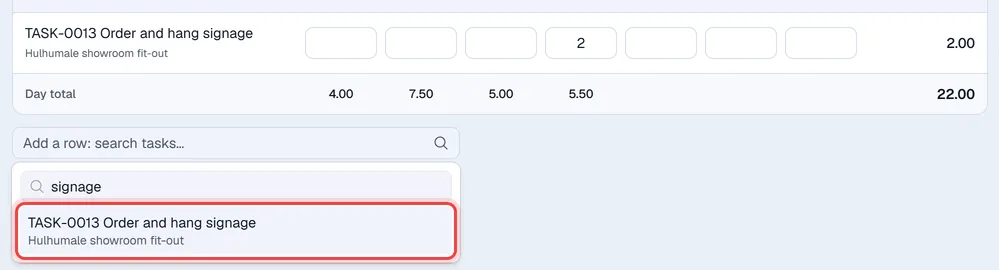
- 1Click the Add a row: search tasks… box under the grid.
- 2Type part of the task name, its number or the project name.
- 3Click the task in the list. A new empty row is added to the grid.
- 4Enter your hours in that row.
Private tasks and tasks of archived projects are not offered.
If your company allows it, service orders are offered in the same list (search by service order number). They appear in the grid as SO followed by the number.
Time a task as you work on it
You can also log time from the task itself in Projects, with a stopwatch:
- 1Open the project and click the task.
- 2Open the Timesheets tab of the task. It shows the hours logged so far, against the hours allocated to the task.
- 3Click ▶ Start timer when you start working. The button turns red and reads ■ Stop timer.
- 4When you stop, click ■ Stop timer. The time is filled in the Hours box.
- 5Check the Date, add a Note if you like, and click Log time.
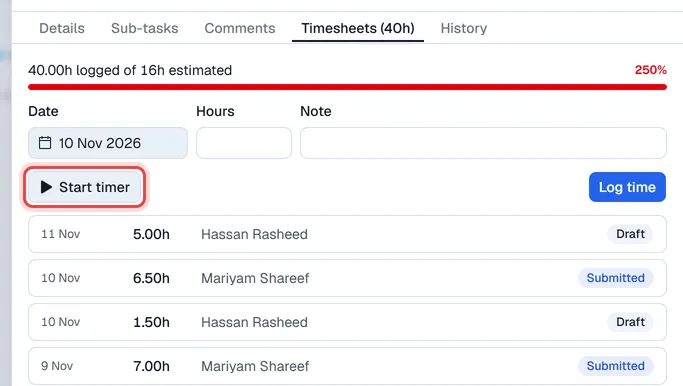
From the same tab you can also type the hours yourself instead of using the timer. The list below shows everyone's entries on the task with their status.
Log time on a Helpdesk ticket
When your company has switched on timesheets for tickets, a ticket has a Time tab. Set the Hours today, type a Note if you like and click Log time. The time is recorded for today. See Setting up Timesheets.
Billable hours
Hours on a task whose project has a customer, and hours on a service order, are marked billable automatically. You see the billable label on the entries in the task's Timesheets tab.
When a cell cannot be changed
| What you see | Why |
|---|---|
| Faded cell in an approved week | The hours were approved and are locked. A manager can unlock the week. |
| Faded cell in a draft week | Several entries were logged for that task on that day (for example from the timer more than once). The grid shows their total but cannot change them one by one. |
Related: Submitting your week.