Welcome to Voltix
Voltix is one place for your shop counter, back office and books. This page shows the home page, how the apps are organised and how to use this help centre.
Your home page
After you sign in and pick your company, Voltix opens your home page. It shows the apps you can open first, then what needs you today.
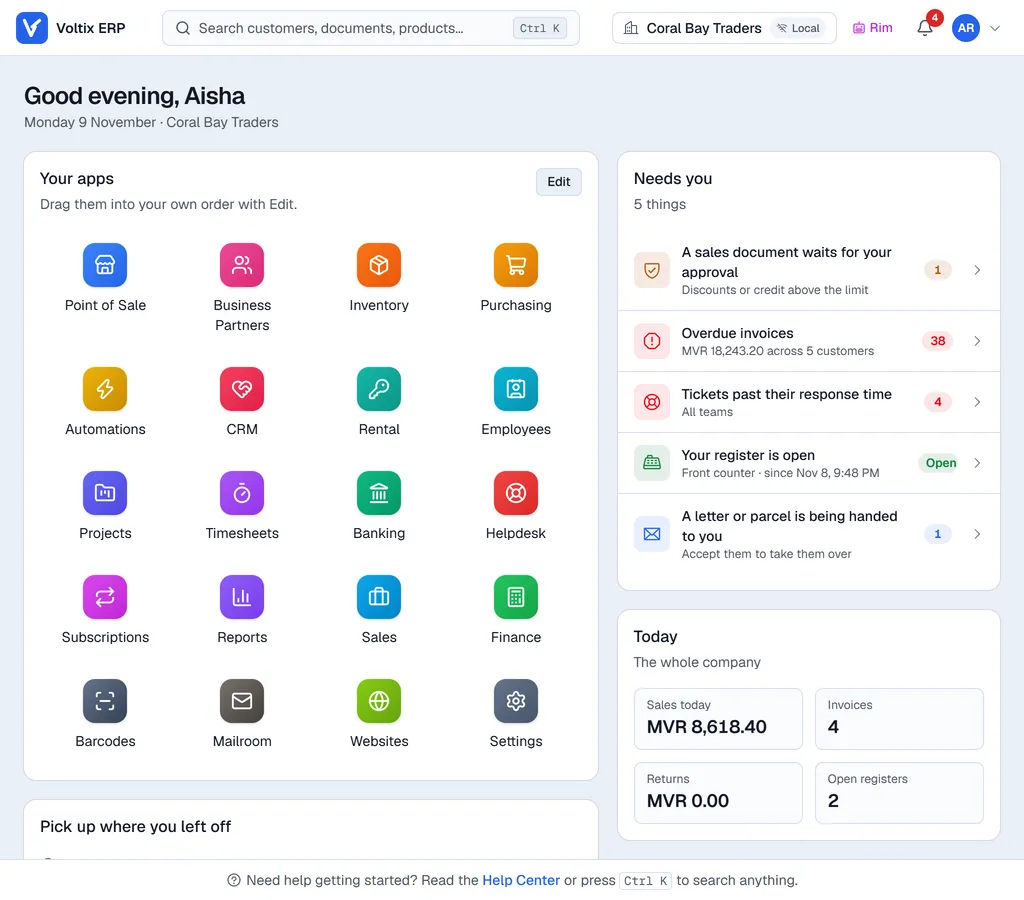
| Block | What it shows | Who sees it |
|---|---|---|
| Your apps | A tile for every app you may open. | Everyone |
| Needs you | Things waiting for you, for example documents to approve, quotation drafts Rim prepared from e-mail, overdue invoices, items below their minimum stock, tickets close to their response time, your open register, today's rental pickups, or a letter being handed to you. Click a line to open it. | Everyone, each line only when you may open that app |
| Pick up where you left off | The records you opened last from search. | Everyone |
| Today | Sales, invoices and returns so far today, and the open registers. | Administrators (whole company) and managers who use the Point of Sale or Sales (their locations) |
| Finish setting up | The first steps for a new company: currency, tax group, products, customers, logo and mailbox. | Administrators of companies without SAP or QuickBooks |
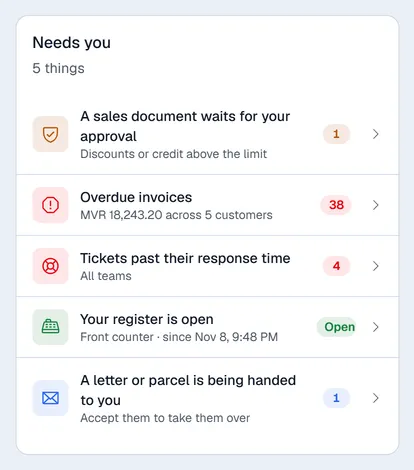
Your administrator can change which blocks your role sees and in what order, and add extra blocks such as Low stock or Unpaid invoices (see Home page settings). You only ever see a block when you may open the app its figures come from.
Hide a block for yourself
Click the crossed-out eye at the top right of a block to hide it from your own home page. The other people in your company still see it. A line at the bottom of the page names the blocks you hid; click Show them again to bring them back. Your apps cannot be hidden.
Put your apps in your own order
- 1On the home page, click Edit on Your apps.
- 2Drag the apps into the order you want. On a touch screen, press and hold an app first. With a keyboard, move to an app, press Space, use the arrow keys, then press Space again.
- 3Click Done. Reset puts back the standard order.
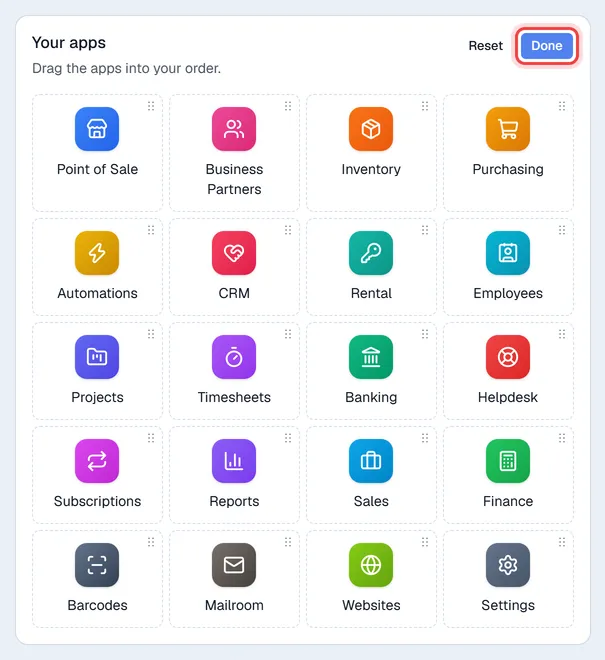
Your order is saved with your user, so it is the same on every computer. The Apps button in the bar at the top of every app uses the same order.
Getting around
- Back to the home page: move the mouse over the Voltix logo at the top left. It turns into a back arrow; click it.
- Another app straight away: inside an app, click the Apps button (four squares) next to the bell.
- Search: on the home page, click the search box in the middle of the top bar. Inside an app, click the magnifying glass. Press Ctrl + K (or ⌘ K on a Mac) anywhere to search for a customer, document, product or setting.
- Another company: on the home page, the box at the top right shows your company and how it works (Local, SAP Live or QB Live). If you work for more than one company, click it to switch.
Who can do what
Two things decide what a person can do in Voltix:
- App access. In Settings → Users, each user has a list of apps they may open (App access (this company)). An app that is switched off there has no tile on their home page.
- Permissions. In Settings → Authorization, groups of users get permissions inside an app, for example "create invoices" or "approve discounts". Administrators can do everything.
If a button described in this help is missing for you, ask your administrator for the matching permission.
Using this help centre
- The contents on the left list every app. Click an app to see its guides.
- On this page on the right jumps to a part of the guide you are reading.
- Search at the top finds any guide. Press / to jump into the search box.
- Click any screenshot to see it full size.
Pick your setup
Some apps work differently depending on where your company keeps its books. At the top right, choose the guide that matches your company:
| Choice | Use it when |
|---|---|
| Without SAP | Voltix is your only system. With the Finance app, Voltix also keeps your books. |
| With SAP Business One | Your company is connected to SAP. Documents are posted to SAP and SAP keeps the books. |
| With QuickBooks | Your company is connected to QuickBooks Desktop. Sales documents are sent to QuickBooks. |
Voltix picks the right one for your company the first time you open the help. Read SAP, QuickBooks or Voltix only to see what changes between them.