Bins
Track where on the shelf stock sits. Scan the bin, then the items.
Show the steps for
What bins are
A bin is a place inside a warehouse: a shelf, a rack, a floor area, the receiving bay. With bins on, every receipt, issue, transfer and count knows where the stock is, not only in which warehouse.
Bins are switched on per warehouse. Warehouses without bins work exactly as before.
Bins come from SAP Business One. A warehouse uses bins when bin locations are switched on for it in SAP; Voltix reads the bins and that setting with the warehouse sync. SAP keeps the quantity per bin, so Voltix shows bins but not what each one holds.
Setting bins up
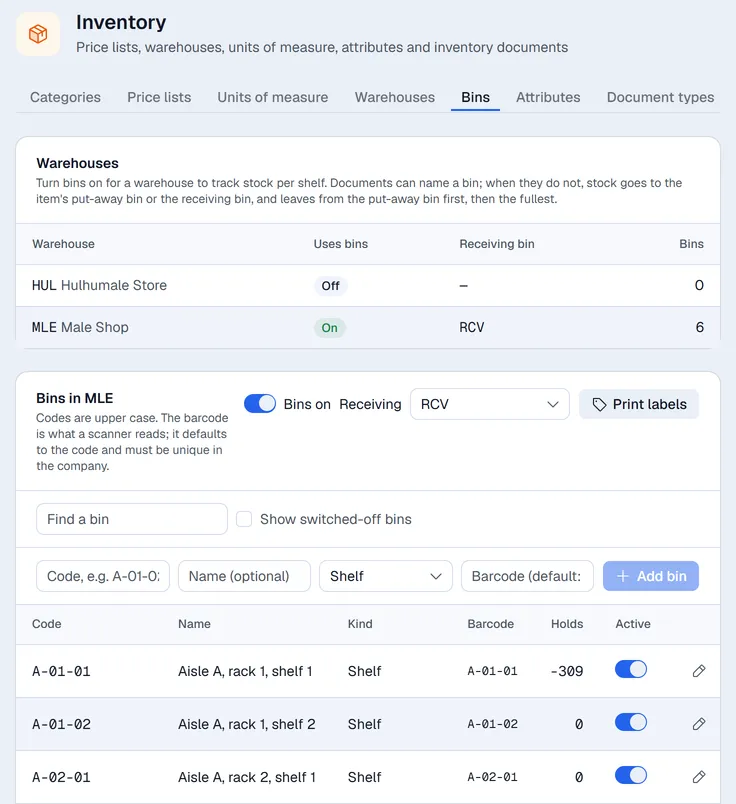
- 1In Settings → Inventory → Bins, pick the warehouse.
- 2Add the bins: a code (for example A-01-02), a name if you like, the kind, and a barcode (the code by default).
- 3Switch Bins on and pick the receiving bin. Everything already in the warehouse is put in the receiving bin; move it to its shelves afterwards.
- 4Click Print labels to print a label for every shelf.
- 1Set the bins up in SAP Business One.
- 2Run the warehouse sync. The bins appear in Settings → Inventory → Bins.
- 3Click Print labels to print a label for every shelf.
Put-away bins
Each item can have a put-away bin per warehouse: where it normally lives. Set it on the item card under Bins → Put away in (needs Inventory: manage bins).
Scanning with bins
- Scan the bin first, then the items. The bin stays chosen until you scan another one.
- Receiving without scanning a bin puts each item in its put-away bin, else in the receiving bin.
- On a transfer, scanning a bin of the other warehouse sets where the items go.
- Each line shows its bin and you can change it there.
Issuing without a bin takes the stock from the put-away bin first, then from the fullest bins.
SAP needs a bin on every line of a warehouse with bin locations. Voltix never guesses one: a line without a bin stops Validate until you scan or pick it.
Your company can also require a bin scan before the first item: Settings → Inventory → Barcodes → Bins → Always scan the bin before the first item.
Moving stock between bins
On the item card, under Bins, press Move between bins, pick the two bins and the quantity. The item stays in the warehouse; only its bin changes. Moving needs the transfer permission.
Counting by bin
On a warehouse with bins, a count lists each item once per bin that holds it. In count mode, scan or pick the bin you are counting, then count the items in it.
The desktop screens
Goods issues, goods receipts, transfers and goods receipt POs show a Bin column for warehouses that use bins, filled in for you.