The Mailroom at a glance
A register of every letter, parcel and document the office receives, sends or passes around, and who holds each one right now.
What it is
The Mailroom keeps a record of:
- Incoming items: letters, parcels and documents that arrive at the office (numbered IN-0001, IN-0002 …);
- Outgoing items: what the office sends out (OUT-0001 …);
- Internal items: documents passed from one colleague to another (INT-0001 …).
Every item keeps a chain of custody. When someone hands an item over, the receiver accepts it in the Mailroom. The person who accepted it last is the one who holds it, so you can always answer "who has it now?".
The Mailroom works the same with and without SAP or QuickBooks. It does not touch stock or the books.
Turning it on
- 1Your Voltix administrator switches the Mailroom on for your company.
- 2In Settings → Users, tick Mailroom under the apps a person may open.
- 3In Settings → Authorization, give the person's group the Mailroom permissions they need (below).
Who may do what
| Permission | Allows |
|---|---|
| Mailroom: use | See the items addressed to them, their teams or held by them; accept, decline and hand over what they hold; close items; log outgoing and internal items |
| Mailroom: log items (reception) | Log incoming items, record the courier, tracking number, sent and delivered; hand items to people outside Voltix; hand over for the person holding an item; reopen and cancel items; change item details |
| Mailroom: see all items | Open the Register: every item that is not confidential in their locations |
| Mailroom: confidential items | See confidential items they are not part of, and mark items confidential or not |
| Mailroom: settings | Change item types, couriers, teams, numbering, reminders and the signature rule |
Administrators may do everything. See Confidential items and who sees what.
The home screen
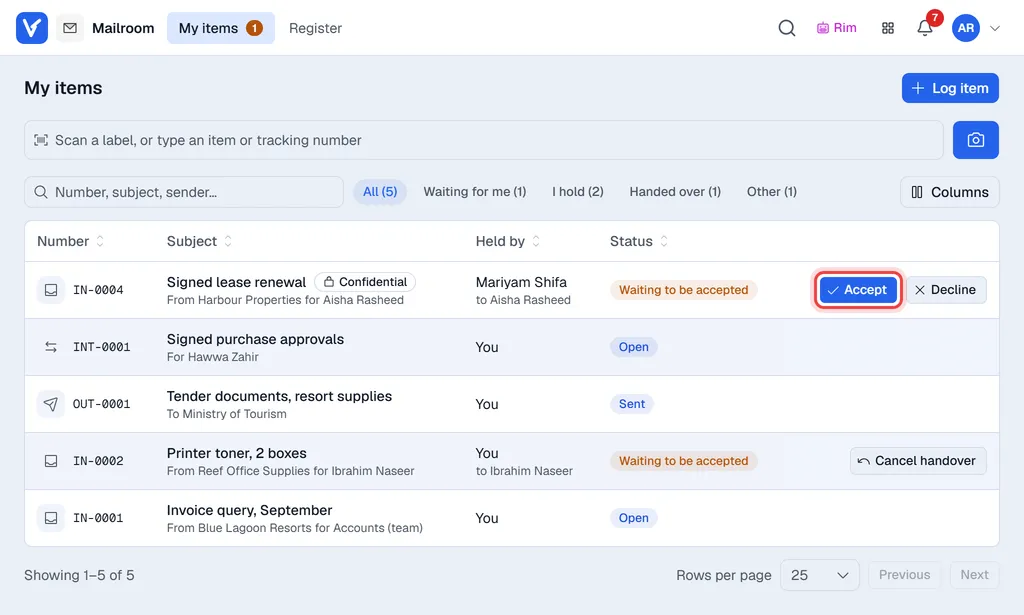
My items lists the items you are part of. The choices above the list narrow it down (each shows how many):
- Waiting for me: items someone is handing to you or to your team. Accept or Decline right from the list.
- I hold: items you accepted (or logged) and still have.
- Handed over: you still hold these until the receiver accepts. Cancel handover takes the handover back.
- Other: items addressed to you that someone else holds, and items you sent.
- All: everything above. When something waits for you, the list opens on Waiting for me.
Above the list, Scan a label, or type an item or tracking number opens an item at once. It works with the phone camera (the camera button), a handheld or USB scanner, or by typing.
The Register menu (reception and people who may see all items) lists every item you may see, with search, All / Incoming / Outgoing / Internal, a status and a location filter, and the dates the items were logged.
Click an item to open it beside the list (the arrow at the top right opens it as a full page). Its Timeline tab shows every step of the chain of custody; Details and Files hold the rest. Print and Download give a mail slip (PDF) with the details and the timeline; … holds Print label, Edit details and Cancel item.