Finance at a glance
The Finance app keeps your company's books in Voltix: chart of accounts, journal entries, automatic postings from your sales and purchases, and the financial reports.
For companies without sap.
Show the steps for
Finance is not used by companies connected to SAP Business One. Your books are kept in SAP, and the Finance tile on the home page is greyed out with the reason.
Finance is not used by companies connected to QuickBooks. Your books are kept in QuickBooks, and the Finance tile on the home page is greyed out with the reason.
What Finance is for
Finance is for companies that keep their books in Voltix. Every sale, payment, purchase invoice and register cash movement makes its journal entry by itself, so the books stay up to date while you work. Your accountant adds the rest by hand: rent, salaries, depreciation and opening balances.
The Finance screen
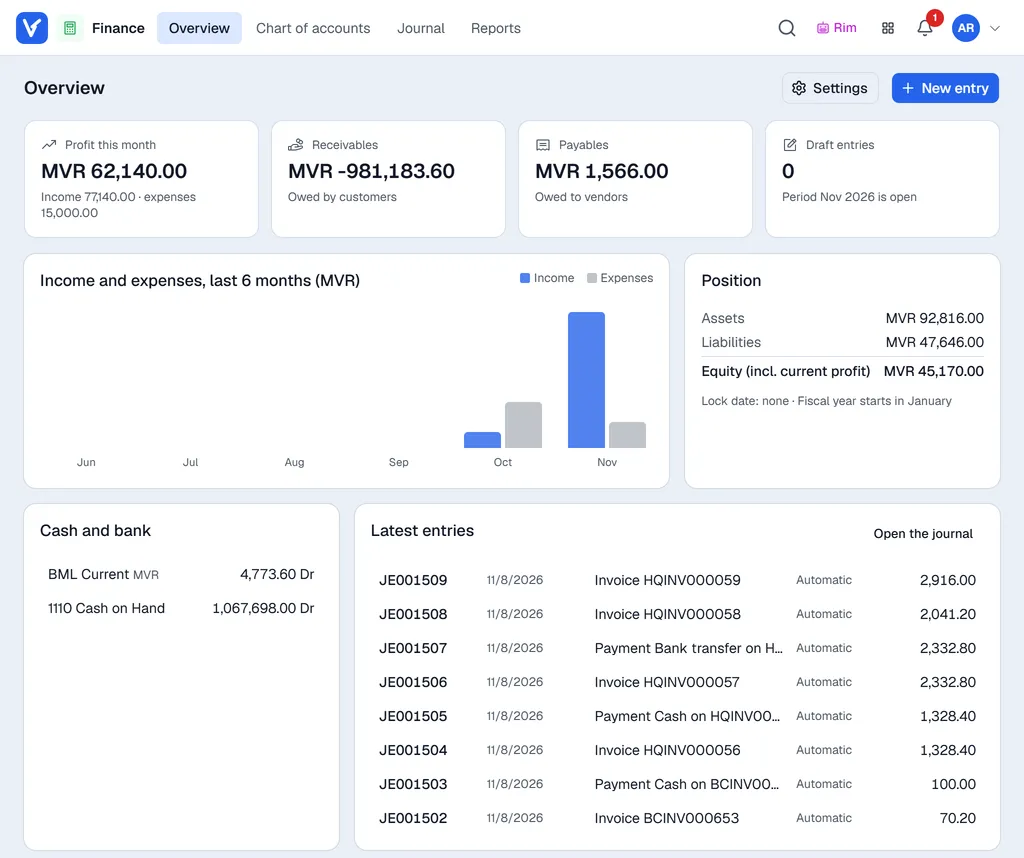
The menus in the bar at the top:
| Menu | What you find there |
|---|---|
| Overview | Profit this month, receivables, payables, draft entries, a six-month income vs expenses chart, cash and bank balances and the latest entries. Click a figure to open the detail behind it. |
| Chart of accounts | Every account with its balance, grouped into assets, liabilities, equity, income and expenses. |
| Journal | All journal entries, automatic and manual. Open one to see its lines. |
| Reports | Trial balance, general ledger, profit and loss, balance sheet, tax report and aged receivables / payables. |
Use New entry at the top right to write a journal entry, and Settings to open Settings → Finance (shown only if you may change Finance settings).
Who can do what
Your administrator gives these permissions in your auth group:
| Permission | Allows |
|---|---|
| Finance: use | Open the Finance app and read accounts, entries and reports. |
| Finance: post entries | Write, post and reverse journal entries. |
| Finance: periods | Create posting periods, lock and unlock them, close a year, and post on or before the lock date. |
| Finance: settings | Change the chart of accounts and the Finance settings. |
Administrators can do everything.
Where to go next
- Setting up Finance: the first steps for a new company.
- Journal entries: write, post and reverse an entry.
- Automatic postings: what your sales and purchases post, and how the accounts are chosen.