Create a website
Use the wizard to start from a template for your kind of business, pick colours and a home page layout.
You need the Websites: settings permission.
Start the wizard
- 1Open Websites and click New website.
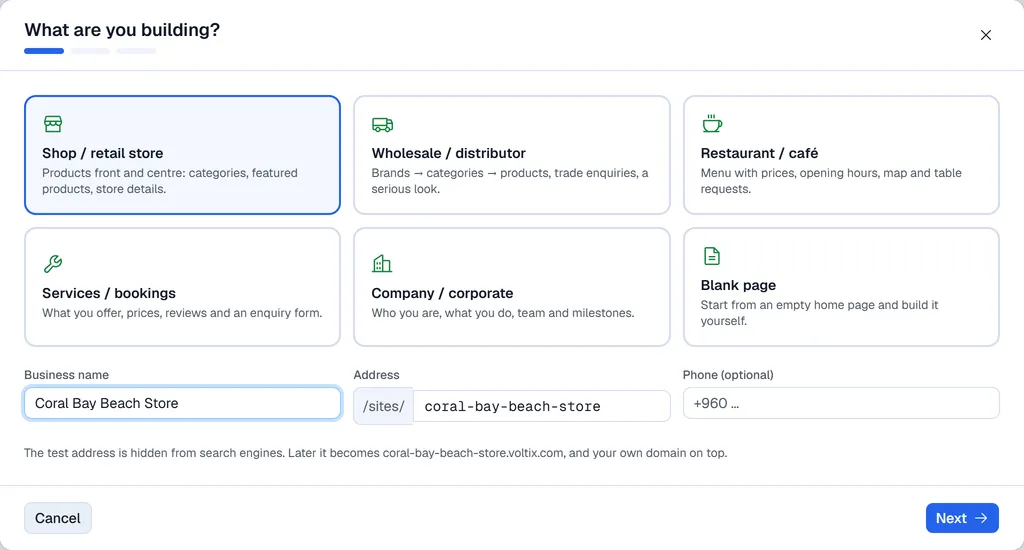
- 2Pick what you are building: Shop / retail store, Wholesale / distributor, Restaurant / café, Services / bookings, Company / corporate, or Blank page to start from an empty home page.
- 3Enter the Business name. The Address is filled in from the name; change it if you like (letters, numbers and dashes, at least 3 characters). Phone (optional) is added to the business details.
- 4Click Next.
Colours and home page
- 1Pick a colour palette, or keep Template colours. Click Next.
- 2Pick one of the three home page layouts. Each preview already shows your name and colours.
- 3Click Create website.
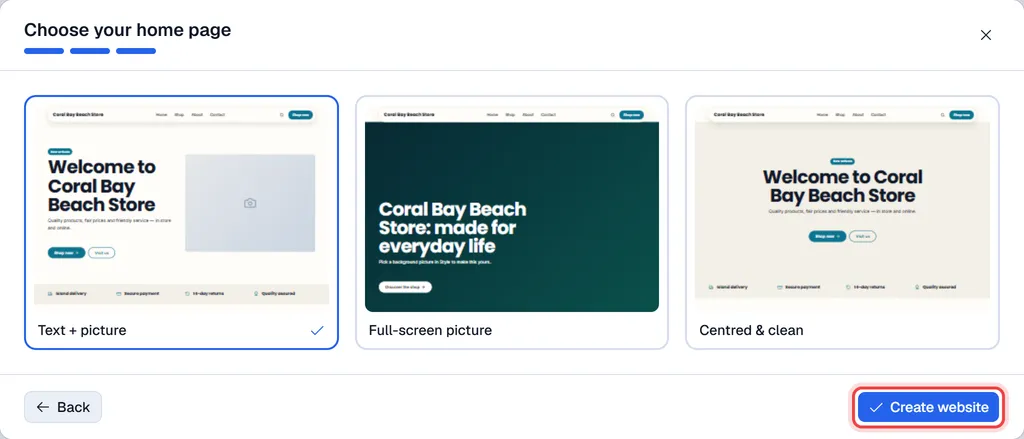
Nothing is created until you click Create website. The website then opens with its home page, the other pages of the template (for example About us and Contact), a main menu and footer links. With Blank page the wizard has only the first step.
Business details and status
In Site settings → General, fill in what the footer and Google show: Registered name, Phone, Email, Address, the Default description (used when a page has none), the social media links and the Footer text. Click Save.
The Status setting there controls the whole website: In progress, Live, or Switched off (not reachable).
Delete website at the bottom of Site settings → General removes all pages, menus and redirects; images stay in the library. It cannot be undone.