Automations
Create project work automatically when a sales order is created, a helpdesk ticket comes in or breaches its SLA, or a CRM deal is won.
An administrator or manager sets up automations in Settings → Projects → Automations. Automations must also be switched on in the Features tab.
What can start a rule
| When | Example |
|---|---|
| A sales order is created | Add Deliver SO-1042 for Sunset Lagoon Resort to the Shop deliveries project. |
| A helpdesk ticket is created | Add the ticket as an item for the service team. |
| A helpdesk ticket breaches its SLA | Add an escalation item. |
| A CRM deal is won | Create a whole onboarding project for the new customer. |
Create a rule
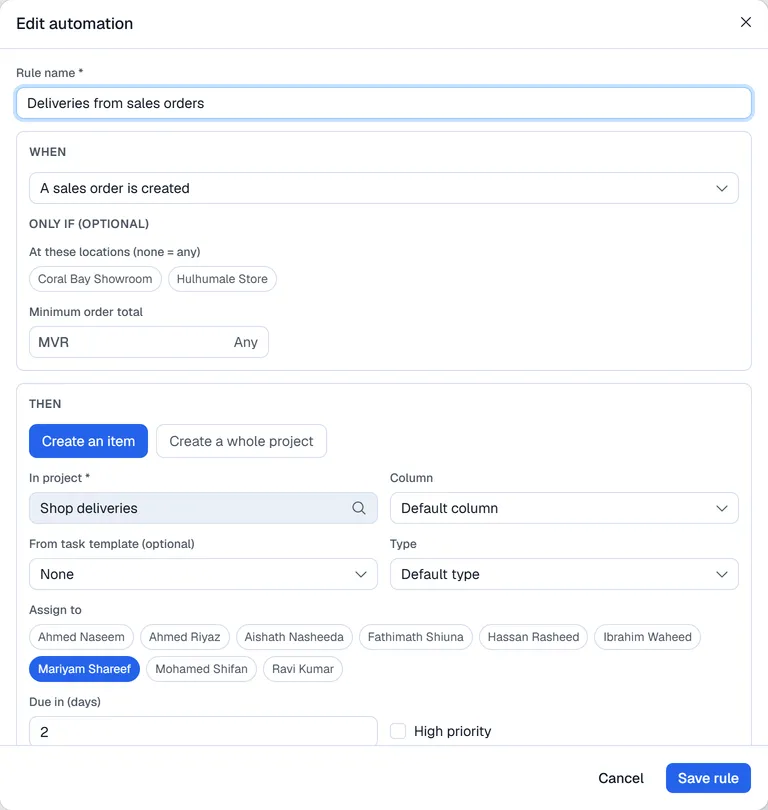
- 1Click New rule and enter a Rule name.
- 2Under When, choose what starts the rule.
- 3Under Only if (optional), you can limit when the rule runs: - sales orders: At these locations, or a Minimum order total - tickets: For these teams, or a Minimum priority - deals: a Minimum expected revenue
- 4Under Then, choose one of: - Create an item: set In project, Column, From task template (optional), Type, Assign to, Due in (days) and High priority. - Create a whole project: choose a From project template.
- 5Enter the Item title or Project name. You can use {number}, {customer}, {subject}, {location} and {amount}. If you leave it empty, Voltix uses the suggested wording.
- 6Leave Write a note back to the ... switched on if you want a note on the ticket or deal when the work is created and again when it is finished.
- 7Keep Active on and click Save rule.
The rule list shows how many items each rule has created and when it last ran. Use the switch in front of a rule to pause it, and click Log to see what has run. If you delete a rule, the work it already created stays.
Where the linked work shows
Each item a rule creates is linked to its sales order, ticket or deal through its Related document. The sales order, ticket or deal also shows the project work linked to it.