Print and e-mail documents
Every created quotation, sales order, invoice, return and delivery note can be printed, downloaded as a PDF, previewed, e-mailed or sent by SMS.
Print or download
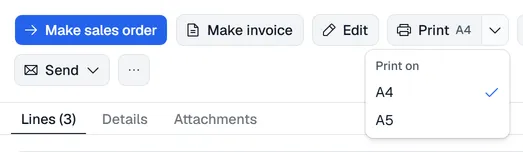
Open the document. Print and Download are next to each other at the top:
- Click Print to open the print dialog of your browser, or Download to save the document as a PDF file.
- Both use the paper size shown on the button (A4 or A5). To use the other size, click the small arrow next to the button and pick it. Voltix remembers the size for each kind of document (invoices, quotations, sales orders, delivery notes, vouchers …) and for you only: print an invoice on A5 once and every invoice opens on A5 next time, while quotations keep their own size. It follows you to other computers too. The first time, a document uses the size of its print layout, else A4.
The layout uses your company logo, name and address from Settings → Company.
Preview first
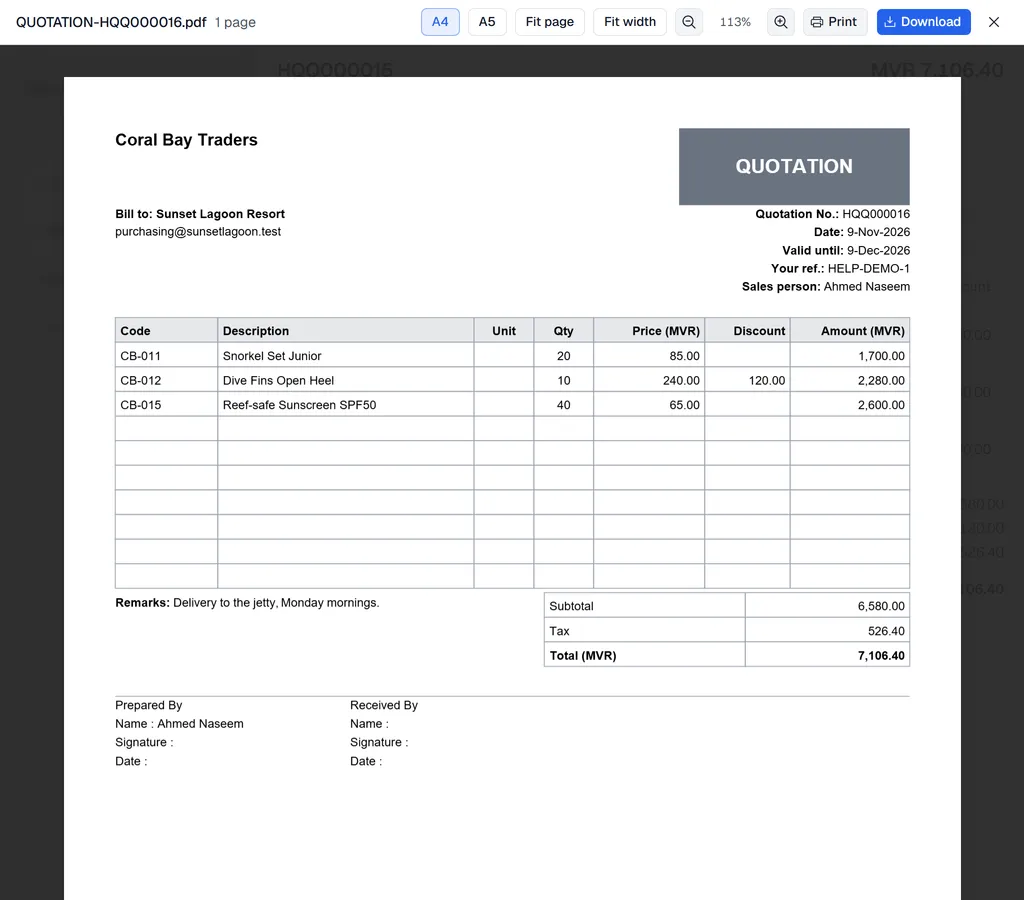
Click … → Preview PDF to see the document before printing. The preview opens at a comfortable reading size:
- A4 / A5 switches the paper size, and Voltix remembers it for this kind of document.
- Fit page shows a whole page, Fit width fills the window, and the − / + buttons zoom. Click the percentage to go back to the reading size.
- Print and Download in the preview use the size on screen.
E-mail a document
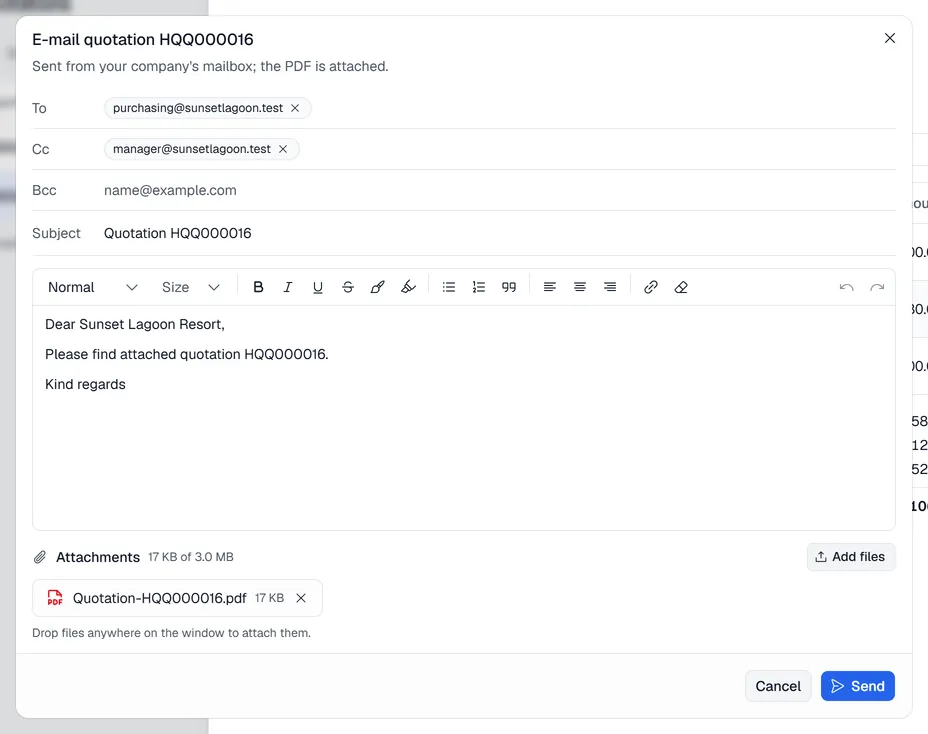
- 1Open the document and click Send → By e-mail.
- 2To is filled in with the customer's e-mail address. Type more addresses and press Enter (or a comma) after each one; you can also paste a list. Click Cc / Bcc to copy other people in.
- 3Check the Subject and the message. Format the message like in your e-mail program: text style and size, bold, italic, underline, colour, highlight, lists, alignment and links.
- 4The document is attached as a PDF. Click Add files to attach more, or simply drop files anywhere on the window. Remove an attachment with its cross. Everything together can be up to 3 MB.
- 5Click Send.
Send by SMS
Click Send → By SMS to text the customer a link to the document. If your company has not set up an SMS service, Voltix says what needs to be configured; an administrator does that in Settings → Integrations → Message Owl (SMS). See SMS.
Delivery notes
Delivery notes are printed from their sales order: open the order, go to the Deliveries tab and click Print on the delivery note. See Delivery notes.