Chart of accounts
View balances, open an account's ledger, and add or change accounts, including blocking an account for manual entries.
For companies without sap.
The chart
Open Finance → Chart of accounts. Accounts are grouped under Assets, Liabilities, Equity, Income and Expenses, with header accounts (in bold) adding up the accounts below them. Balance (MVR) is shown as Dr or Cr.
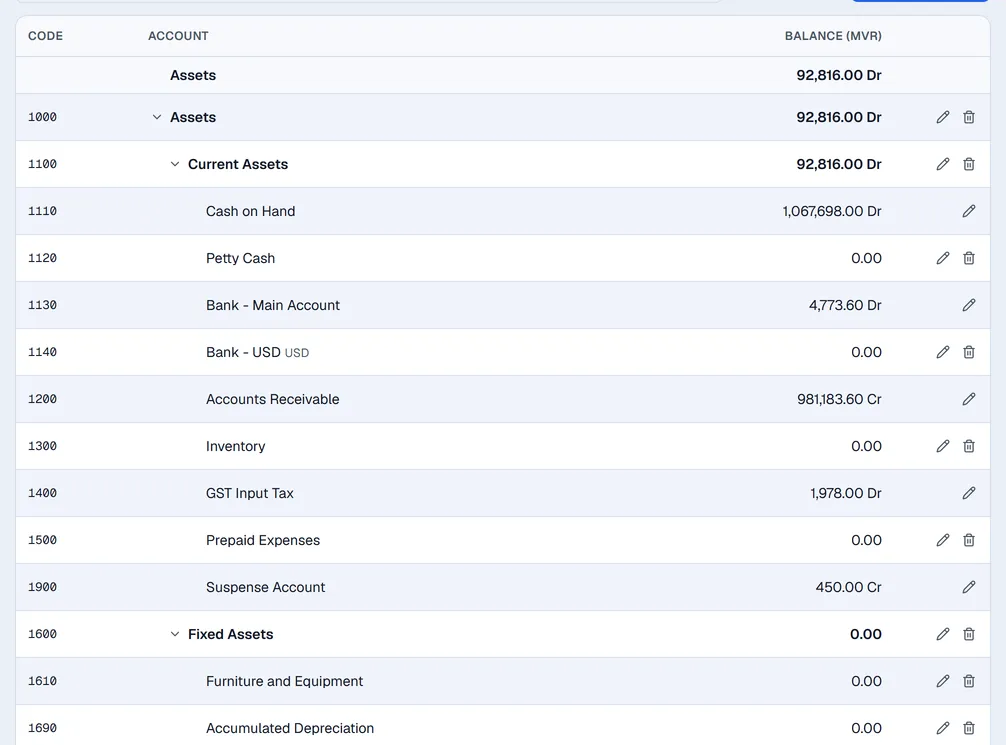
- Type in Find an account by code or name to filter.
- Tick Show inactive to see accounts you have switched off.
- Click an account's name to open its general ledger under Reports.
- The arrow next to a header folds its accounts away.
A small lock next to an account means it is blocked for manual posting.
Add or change an account
You need the Finance: settings permission.
- 1Click New account, or the pencil next to an account.
- 2Fill in Code, Class and Name. The code cannot be changed later.
- 3Choose its Parent (header) and the Kind: a Posting account takes entries, a Header only groups accounts.
- 4For a foreign-currency bank account, choose its Currency. Leave MVR (base) for everything else.
- 5Click Save.
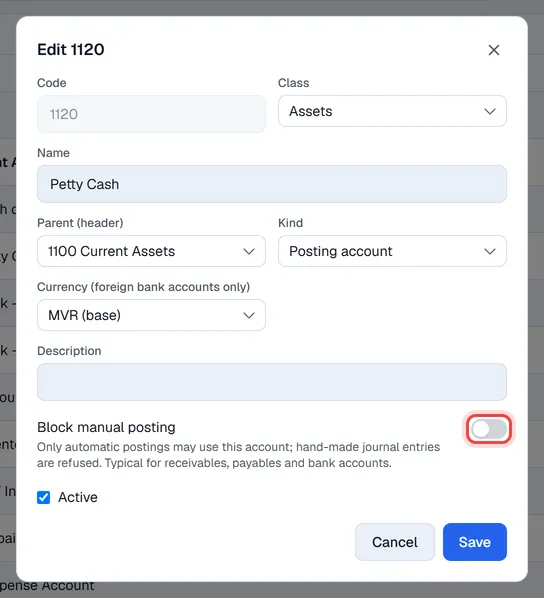
Block manual posting
Switch on Block manual posting for accounts that only automatic postings should touch, typically receivables, payables and bank accounts. Hand-made journal entries and drafts from Rim cannot use them; they are left out of the account list in a new entry.
Deactivate or delete
Untick Active to stop using an account; its history stays in the reports. The bin icon deletes an account, which is only possible while it has no postings. Once an account has postings, its class and kind can no longer be changed.