Logging an item
Record a letter or parcel that arrived, something the office sends out, or a document passed between colleagues.
Log an item
- 1In the Mailroom, press Log item.
- 2Choose Incoming, Outgoing or Internal. Only people with Mailroom: log items (reception) see Incoming.
- 3Fill in the details (below) and press Log item.
The item gets the next number of its kind and opens. You are its first holder.
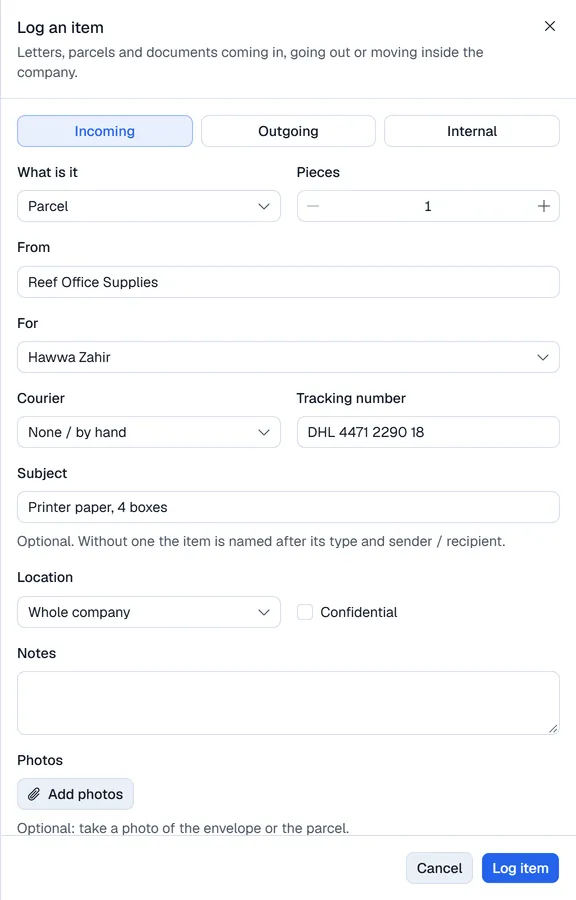
The details
| Field | What to fill in |
|---|---|
| What is it | Letter, Parcel, Document, Package, Cheque, or a type your company added |
| Pieces | How many envelopes or boxes belong together |
| From | Incoming: the sender, a company or a person. Required |
| To and Address | Outgoing: who it goes to. To is required |
| For | Incoming and internal: the person or team it is for. Pick someone who uses the Mailroom, a team, or Someone else (type a name) |
| Courier and Tracking number | Incoming: how it arrived. Scan or type the tracking number |
| Subject | Optional. Without one the item is called after its type and sender, e.g. "Parcel from Reef Office Supplies" |
| Location | The location it belongs to, or Whole company |
| Confidential | Only the people it is for, the people it passes through and those allowed to see confidential items will see it |
| Notes | Anything else |
| Photos | Optional: take a photo of the envelope or the parcel with the phone camera |
When an incoming item is logged, the person it is for (or every member of the team) gets a notice on the bell, and by e-mail when your company has that switched on.
The item page
Open any item to see who holds it and the Timeline (the first tab): every step, who did it and when. Details shows who it is for, the courier and tracking link; Files holds its photos and signatures. The timeline is never changed afterwards; a mistake is fixed by a new step.
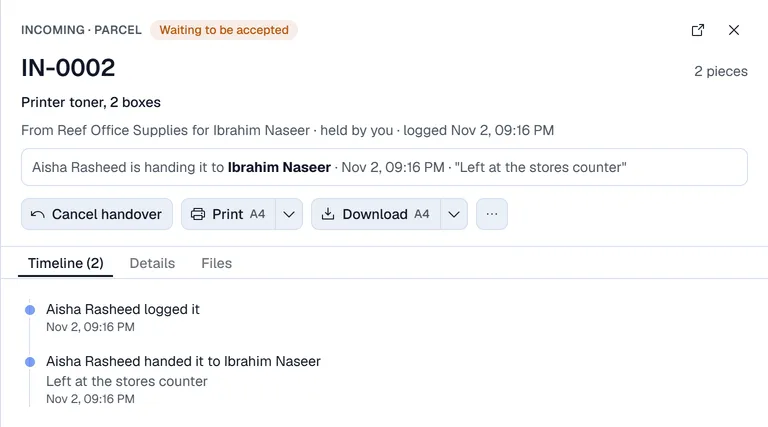
The buttons depend on what you may do:
- Hand over, Hand to someone outside: see Handing over and accepting and Couriers, outside people and proof of delivery.
- Close: the item is done. Choose Received, Filed, Returned to sender or Other (with a note).
- Reopen: a closed item comes back (reception only).
- Cancel item (under …): logged by mistake. A reason is required and the item stays in the register as cancelled (reception only).
- Print label (under …): a label with the item number as a barcode and a QR code, to stick on the envelope. Scanning it later opens the item. A confidential item's label shows only "CONFIDENTIAL" and who it is for.
- Print and Download: a mail slip (PDF) with the item's details and its timeline, with lines to sign. The arrow next to them picks A4 or A5.
- Edit details (under …) changes the details. Reception may change any item; the person who logged an item may change it while they still hold it. Every change is on the timeline with the old and the new value.
Photos and files
On the Files tab (Signatures, photos and files), the person holding an item (or reception) can Add photo. Files are pictures (JPG, PNG, GIF, WebP, HEIC) or PDF. Whoever added a photo can remove it again; signatures and signed papers can never be removed.