Posting periods and year-end
Create the fiscal year and its periods, lock a period once it is checked, and close the year to retained earnings.
For companies without sap.
Open Settings → Finance → Posting periods. You need the Finance: periods permission.
Create a posting period
- 1Click New posting period (or Create current fiscal year the first time).
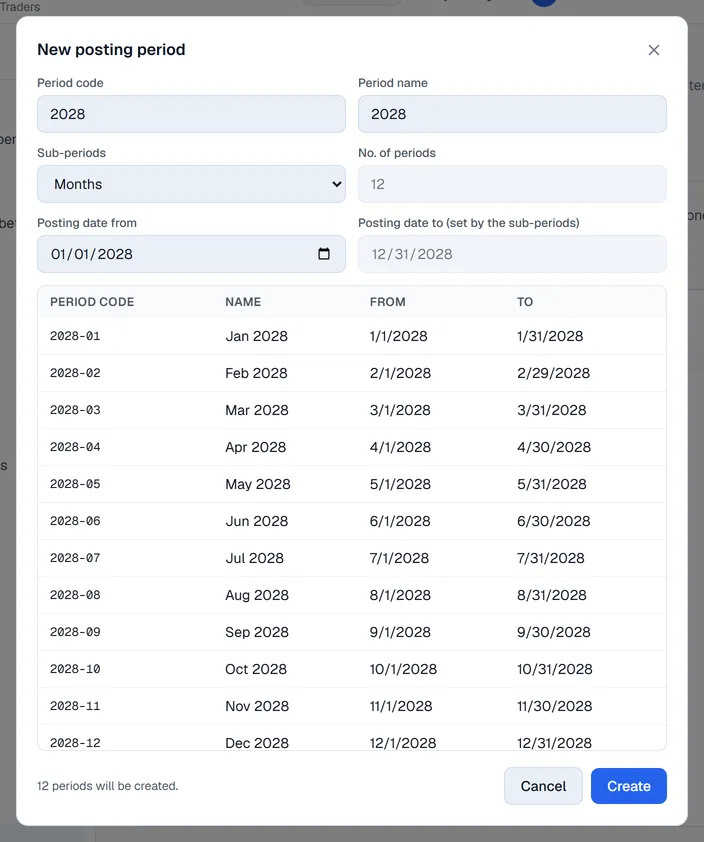
- 2Fill in the Period code and Period name, for example 2027.
- 3Choose the Sub-periods: Year, Quarters, Months or Days. For Days, type the No. of periods.
- 4Check Posting date from. With Quarters or Months, Posting date to is set for you.
- 5The table shows the periods that will be created. Click Create.
Lock and unlock
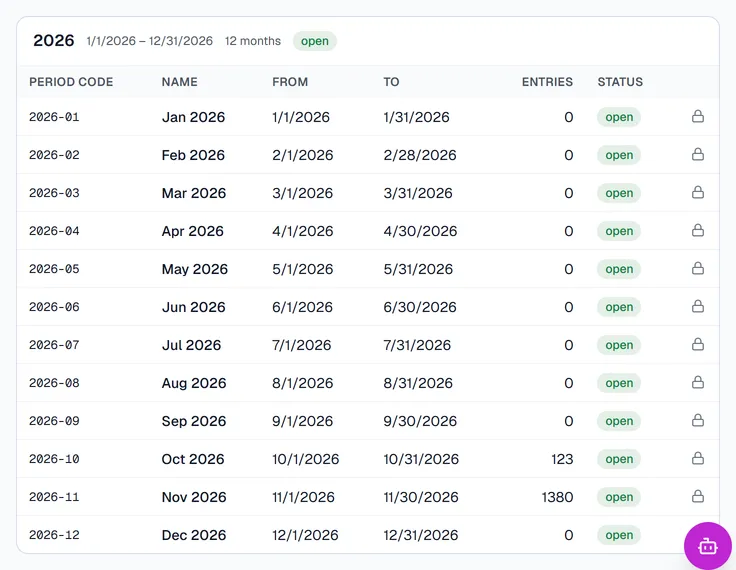
Click the lock icon on a period to lock it once it is reconciled. Nothing can be posted into a locked period, automatic postings included; those wait in Postings until the period is unlocked, then you repost them. The Lock date on the General tab locks everything up to a date in one go.
A year without entries can be removed with Delete.
Close the year
When a year has ended:
- 1Click Close year on it.
- 2Check the income, the expenses and the profit or loss that moves to retained earnings.
- 3Click Close the year.
One closing entry, dated the last day of the year, moves every income and expense balance to the Retained earnings account of the G/L account determination, and the periods are locked. Draft entries still dated in that year must be posted or deleted first.
Reopen reverses the closing entry and unlocks the periods.