Scanner and barcode settings
How scanned codes are read everywhere in Voltix, and how the Barcodes app behaves.
All of these are in Settings → Inventory → Barcodes. They apply to every screen that takes a scan: the POS, Sales, counting, the stock forms and the Barcodes app.
Scanning
- Read GS1 barcodes: GS1-128, DataMatrix and QR codes that carry more than the item: batch, expiry, serial number, count or weight. One scan fills them all in.
- Scanner prefix and Scanner suffix: only when your scanner is programmed to send extra characters around the code.
- Shortest code and Key gap (ms): a hardware scanner types its code as a fast burst of keys. Keys typed further apart than the key gap are a person typing, and are left alone.
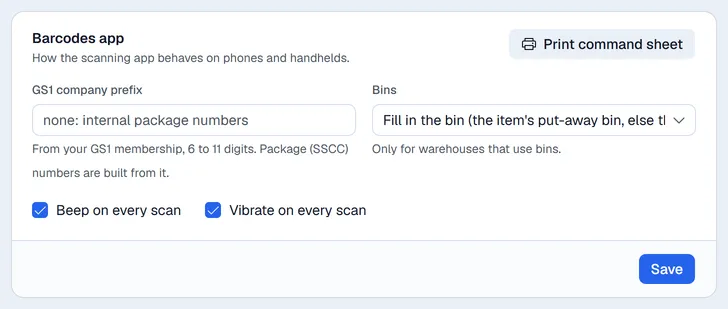
Barcodes app
- GS1 company prefix: from your GS1 membership, 6 to 11 digits. Package numbers are built from it (see Packages).
- Bins: fill in the bin by itself (the item's put-away bin, else the receiving bin), or always scan the bin before the first item.
- Beep on every scan and Vibrate on every scan.
- Print command sheet: barcodes for Validate, Clear the bin and Leave the screen, for handhelds.
Rules
Rules are tried first, in order, for codes your items do not carry as such:
| Kind | Example |
|---|---|
| Weighed item, price in the code | 21.....{NNNDD}: item 21xxxxx, then the amount; the quantity is the amount ÷ the unit price |
| Weighed item, weight in the code | 22.....{NNDDD}: item 22xxxxx, then the weight in kg |
| Quantity in the code | 23.....{NNNNN}: item 23xxxxx, then the number of units |
| Warehouse code | WH-: the rest is the warehouse code or barcode |
| Bin code | a prefix printed on your shelf labels; the rest is the bin code or barcode |
| Command | a code that presses a button in the Barcodes app |
| Ignore | codes with this prefix are never looked up |
Try a code
Type or scan a code in Try a code to see exactly what Voltix makes of it with the saved settings.
Case and unit barcodes
An item can have a barcode per unit (for example the case of 12). Scanning the case barcode adds 12 at once, in the POS, in Sales and in the Barcodes app. Add them on the item in Inventory, under its units.