Helpdesk at a glance
The Helpdesk keeps every customer question, complaint and repair request as a ticket, owned by a team, moved through stages and timed against the response times you promise.
What the Helpdesk is for
Use the Helpdesk when a customer needs something from you after the sale: a damaged delivery, a warranty repair, a wrong invoice, a question about prices. Each request becomes a ticket with its own number (for example TKT-00023), so nothing is lost in phone calls or chat messages and anyone in the team can pick it up.
Tickets arrive in three ways:
- Your staff create them by hand with New ticket.
- From a sale: Create Support Ticket on the order details of a receipt (see Create a ticket).
- From your website: the contact form and the live chat create tickets automatically (see Questions and problems).
The Helpdesk screen
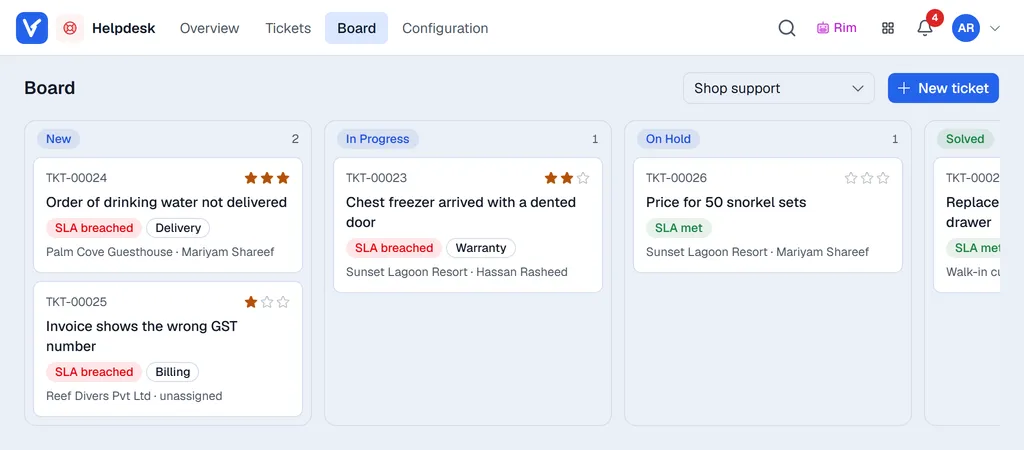
The menus in the top bar:
| Menu | What you find there |
|---|---|
| Overview | Four figures (open, unassigned, urgent and SLA breached tickets): click one to see those tickets as a list. Under them a line per team with its open, unassigned and SLA breached tickets and the average age of open tickets; click a team to open its board. |
| Tickets | The list of tickets with search, filters and New ticket. Click a ticket to open it. |
| Board | One team's tickets in one column per stage. Pick the team at the top right. On a phone the board shows one stage at a time: tap a stage in the row above it. |
| Settings | Managers and admins only: opens Settings → Helpdesk, with the teams and their stages, SLA policies, tags, canned responses, the company-wide switches and ticket numbering. |
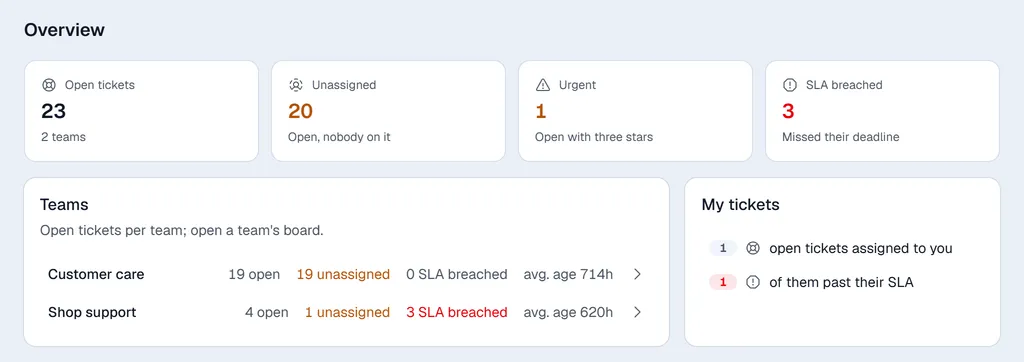
If your login is linked to an employee record, the Overview also shows My tickets: how many open tickets are assigned to you and how many of them are past their SLA. Otherwise that card says you are not linked to an employee.
The ticket list
On Tickets:
- The search box looks in the ticket number, subject and customer.
- The filters next to it show Open, My tickets (assigned to you), Unassigned, Urgent (open with three stars), SLA breached, Solved, Cancelled or All tickets.
- All teams and Any priority narrow the list to one team or one priority, and the date box to the tickets opened in a period.
- Columns chooses which columns are shown.
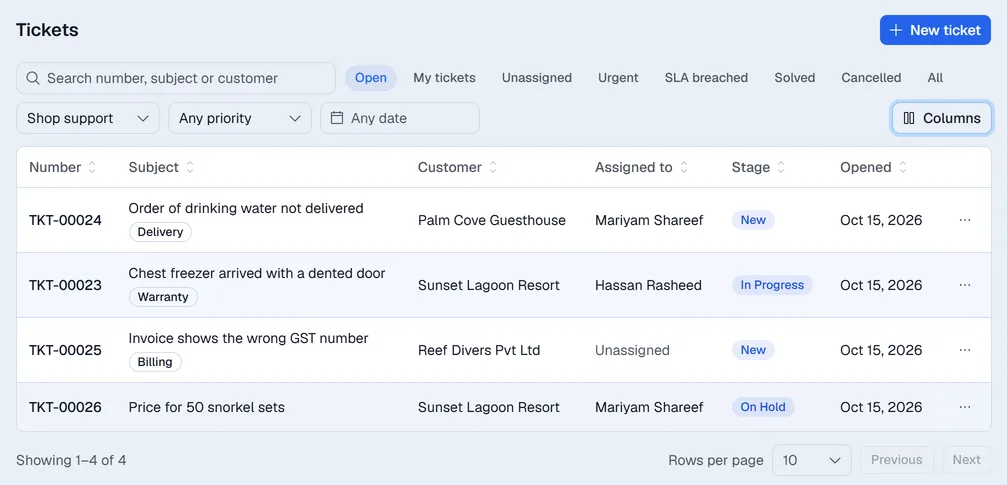
Each ticket shows its number, the subject and its tags, the customer, who it is assigned to, its priority as stars, the SLA clock, its stage and the day it was opened. On a phone each ticket is a card.
Priority
Priority is shown as up to three stars. No star is normal, three stars is the most urgent. Click the stars on a ticket to change it; clicking the highest lit star again lowers it by one. Tickets with more stars are listed first.
Who sees which tickets
| Role | Sees |
|---|---|
| Admins and managers | Every ticket of every team. |
| Other users | Only the tickets of the teams they are a member of. |
Team members are chosen from your Employees list, so a user must be linked to an employee record to belong to a team. Users also need access to the Helpdesk app on their user record.