Journal entries
Write a journal entry, save it as a draft, post it, attach documents and reverse it if it was wrong.
For companies without sap.
The journal
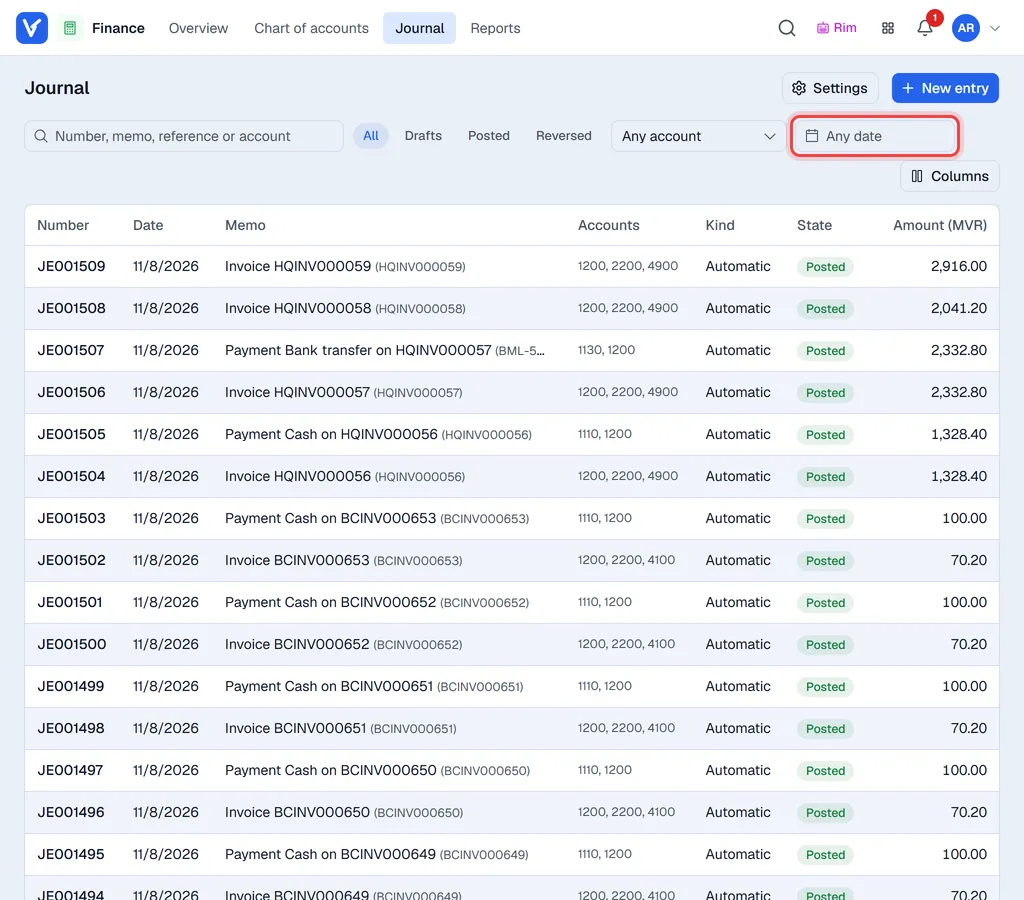
Finance → Journal lists every entry, newest first, with its Number, Date, Memo, Accounts, Kind (Manual, Automatic, Opening, Closing or Reversal) and State (draft, posted or reversed). Search by text, then narrow the list with the buttons All, Drafts, Posted and Reversed, the Any account list and Any date (pick a period such as This month, or a first and last day). A paperclip shows how many files are attached.
Click a posted entry to open it in a panel on the right; a draft opens in the editor so you can finish it.
Write an entry
You need the Finance: post entries permission.
- 1Click New entry.
- 2Fill in the Date, a Memo (what the entry is for) and, if you like, a Reference such as a slip number.
- 3Leave Currency on MVR, or type another currency code and its rate (MVR per 1).
- 4On each line pick the Account and type the Debit or the Credit. Add a Description and a Partner (customer or vendor) where useful.
- 5Click Add line for more lines. A new line is filled with the amount that still balances the entry.
- 6To attach a receipt or contract, click Attach before saving, or use the attachments section once the entry is saved.
- 7Click Save draft to finish it later, or Post.
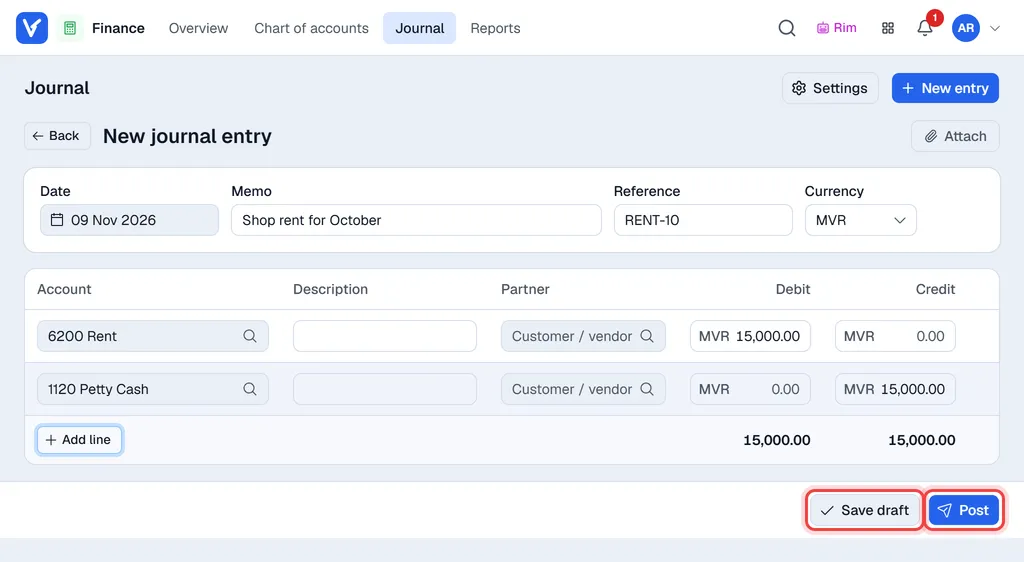
Post stays greyed out until the entry balances; if it does not, the footer shows Out of balance by the difference. The entry gets its number (for example JE000136) when it is posted.
Drafts
A draft can be changed freely or removed with Delete draft. Drafts do not count in any report.
Correct a posted entry: reverse it
Posted entries cannot be edited. To correct one:
- 1Open it, click … and choose Reverse.
- 2Pick the Reversal date and click Reverse.
A mirror-image entry is posted on that date and the original is marked reversed. Use Duplicate to start a corrected copy.
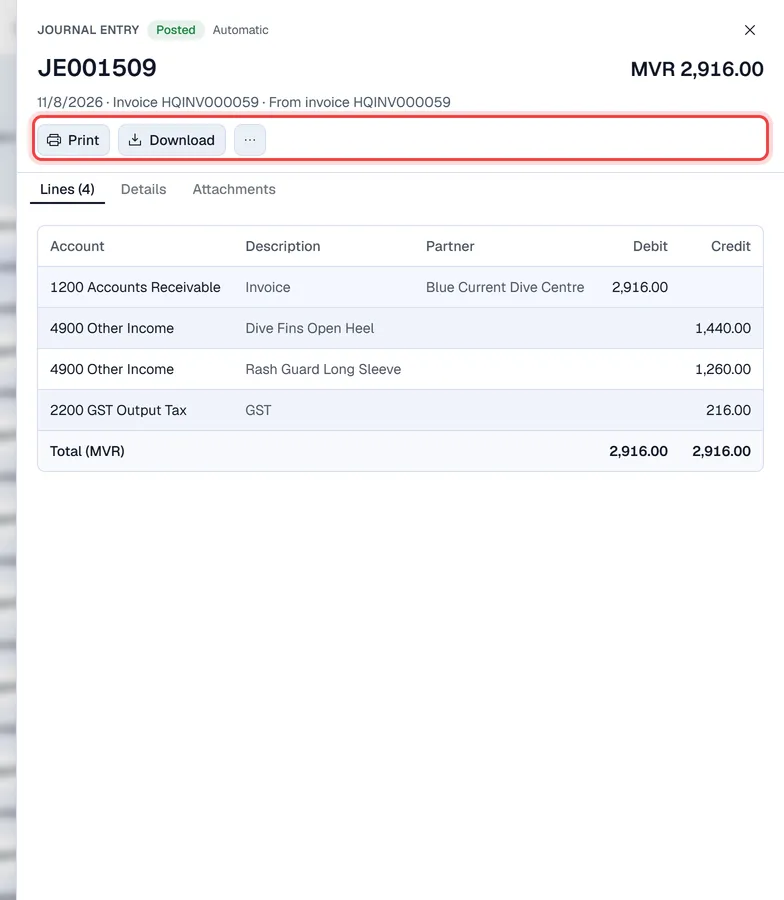
Automatic entries say where they came from, for example from invoice HQINV000034. To undo one, void or cancel the document itself; its entries are reversed for you.
Opening balances
Opening balances are an ordinary entry: date it the day before you start, debit your asset accounts, credit your liabilities, and put the difference on an equity account.
Printing a journal voucher
Open an entry and click Print for a journal voucher: the entry number, date, kind and state, the currency and rate, every line with its account, debit and credit, the totals, and signature lines for prepared, posted and approved by. Download saves the same voucher as a PDF, and … → Preview PDF shows it first. Print and Download show the paper size (A4 or A5); the small arrow next to them picks the other one, and Voltix remembers your choice for the next voucher. The preview has the same A4 / A5 switch. A draft can be previewed from the editor (Preview). Drafts print with a DRAFT watermark and reversed entries with REVERSED.