Home page for each role
Choose which blocks administrators, managers, cashiers and viewers see on their home page, add extra blocks such as low stock or unpaid invoices, and put them in order.
Everyone lands on the home page after signing in. As an administrator you decide, for each role, which blocks it shows and in what order. Until you change anything, every role gets the standard page: Your apps, Needs you, Pick up where you left off, and for administrators and managers Today and Finish setting up.
Important. A block only chooses what a role may see. A person still sees a block only when they may open the app its figures come from (their app access, permissions and locations). Switching Unpaid invoices on for cashiers, for example, is not possible, and switching Purchase orders to receive on for cashiers shows it only to cashiers who may open Purchasing.
Change the blocks of a role
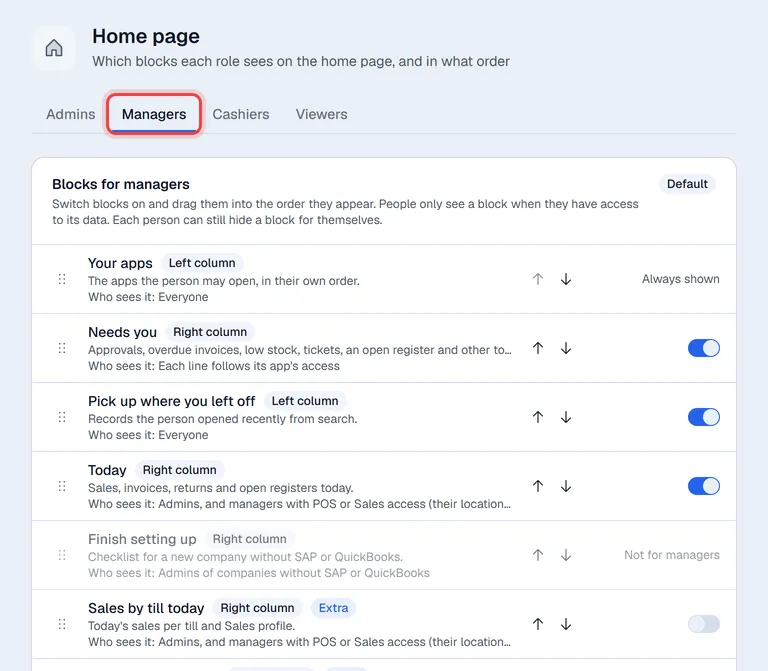
- 1Open Settings → Home page. Only administrators see this section.
- 2Pick the role at the top: Admins, Managers, Cashiers or Viewers. Super users get the administrators' page.
- 3Switch a block on or off with the switch at the end of its row. Your apps is always shown. A block marked Not for … is never available to that role.
- 4Put the blocks in order: drag a row by the dots at its left, or use the up and down arrows. On a wide screen, blocks marked Left column go on the left and Right column on the right, each in this order; on a phone every block is shown in this order, one under the other.
- 5Click Save. The change applies the next time people open their home page.
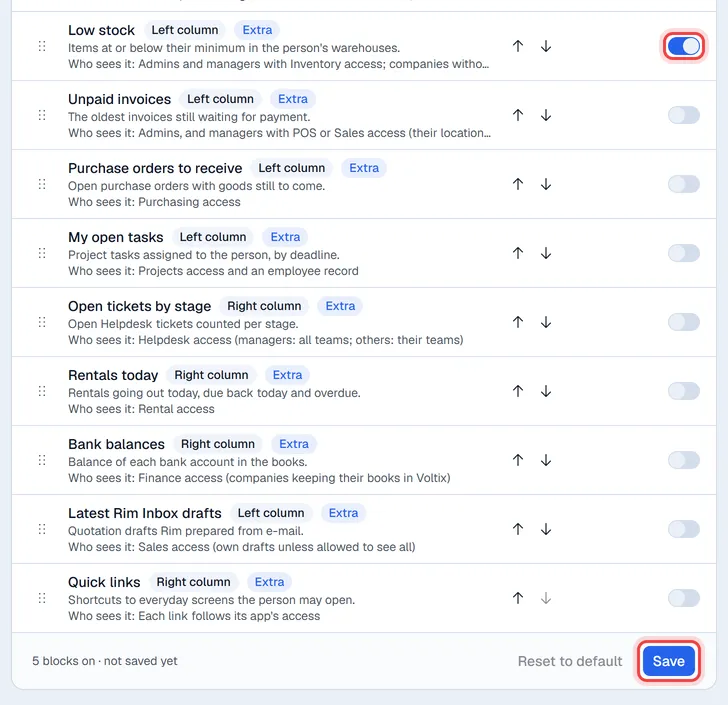
Reset to default puts the role back to the standard page. The label at the top right of the list says whether the role uses the Default page or one Changed by an admin.
Extra blocks you can add
| Block | What it shows | Who can see it |
|---|---|---|
| Sales by till today | Today's sales per till and per Sales profile, with the number of invoices. | Administrators (whole company) and managers who use the Point of Sale or Sales (their locations) |
| Top items this week | The best-selling items of the last 7 days, by amount. Click an item to open it in Inventory. | Same as above |
| Low stock | Items at or below their minimum stock in the warehouses the person may use. | Administrators and managers with Inventory access, in companies without SAP |
| Unpaid invoices | The oldest invoices still waiting for payment; overdue ones in red. Click one to open it. | Administrators and managers who use the Point of Sale or Sales (their locations) |
| Purchase orders to receive | Open purchase orders with goods still to come, earliest due date first. | Everyone who may open Purchasing |
| My open tasks | Project tasks assigned to the person, by deadline. | Everyone who may open Projects and has an employee record |
| Open tickets by stage | Open Helpdesk tickets counted per stage, with how many are past their response time. | Everyone who may open Helpdesk (managers: all teams, others: their own teams) |
| Rentals today | Rentals going out today, due back today and overdue. | Everyone who may open Rental |
| Bank balances | The balance of each bank account in the books. | People with Finance access, in companies that keep their books in Voltix |
| Latest Rim Inbox drafts | The last quotation drafts Rim prepared from e-mail. | People who use Sales (their own drafts, unless they may see all) |
| Quick links | Shortcuts to everyday screens: Point of Sale, quotations, invoices, receive payments, customers, stock, purchase orders, reports and this Help Center. | Everyone, each link only for apps the person may open |
Amounts are in your company's base currency.
Tip. Each person can still hide a block for themselves with the crossed-out eye at the top of the block, and bring it back from the line at the bottom of their home page. That does not change the page for anyone else.