Handle web orders
Confirm online orders into sales orders, mark them paid, ready, shipped, completed or cancelled.
Show the steps for
You need the Websites: orders permission. Open the website, then Shop → Orders in the menu at the top.
The order list
The chips above the list filter it: Open (new, confirmed, ready and shipped), Waiting for payment, New, Confirmed, Ready, Shipped, Completed, Cancelled and All. Search by order number, name or phone, and pick a period with Any date (the day the order was placed, in your company's time zone). Click a column title to sort; Load more shows older orders.
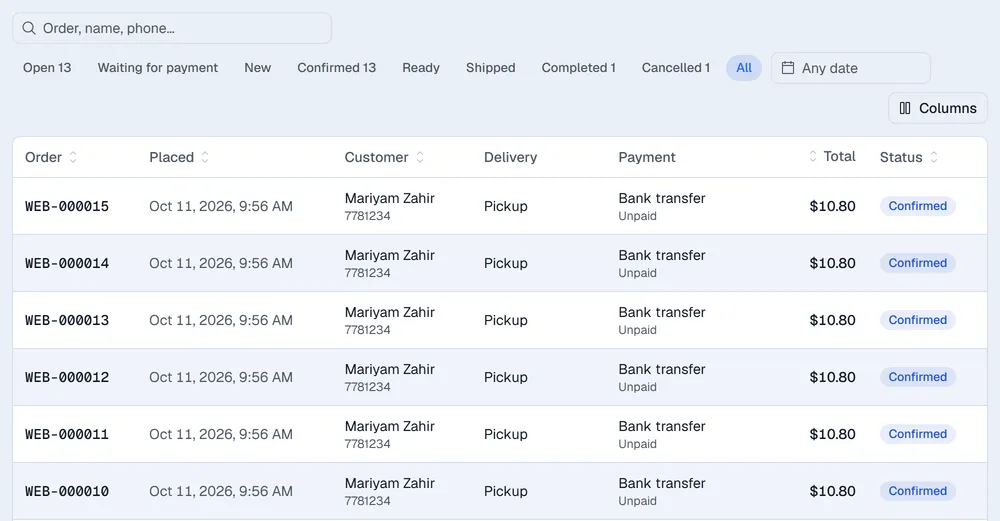
| Status | Meaning |
|---|---|
| Waiting for payment | The customer chose BML Connect and the bank has not confirmed the payment yet. |
| New | Placed, not yet a sales order. |
| Confirmed | A sales order was created for it. |
| Ready for pickup / Shipped / Completed | Your progress with the order. |
| Cancelled | The customer is told it was cancelled. |
Work on an order
Click an order. It opens in a side panel (the arrow at the top right opens it as a full page). The tabs show the Lines (items with GST and total), the Payment (method, status and online payments), the Details (customer, pickup or delivery address, note) and the Activity (history).
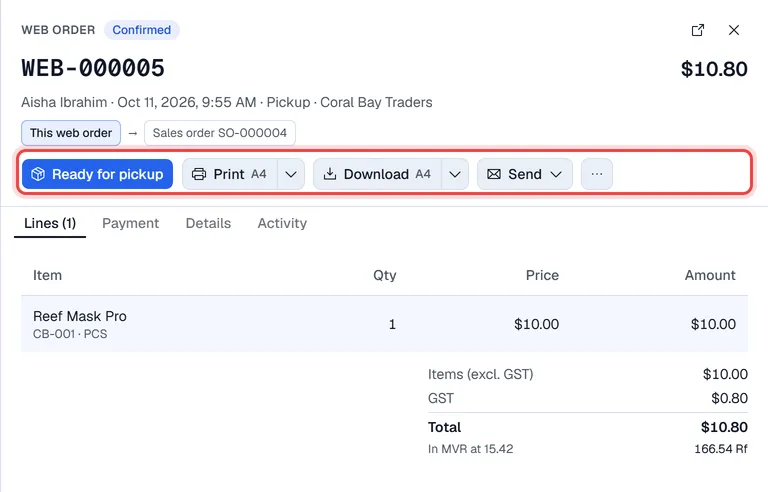
- 1Make sales order creates the sales order and confirms it. An order paid with BML Connect can only be confirmed once the bank has confirmed the payment. (If Create the sales order as soon as an online payment is confirmed is on, paid online orders are confirmed for you.)
- 2Then mark the progress with the next-step button: Ready for pickup, Mark shipped, Mark completed. To skip a step, use the … menu.
- 3For pay on delivery and bank transfer, choose … → Mark paid when the money is in.
- 4For BML Connect, … → Check payment with the bank asks the bank for the payment's status again. Online payments can never be marked paid by hand.
- 5… → Cancel order asks for a reason first; the customer is told the order was cancelled.
Print and Download make a PDF of the order (the arrow next to them picks A4 or A5). Send → By e-mail opens the e-mail window with the customer's address and the PDF attached.
In SAP Business One
Confirming posts the sales order to SAP first. If SAP refuses it, nothing is saved, the order stays New and the panel shows The sales order could not be created. with SAP's message. Fix the cause and click Make sales order again; it never posts twice. The panel then shows the Voltix sales order number and the SAP number.
In Voltix
Confirming creates the sales order in Voltix, the same as a sales order made at the Point of Sale.
Foreign currency
When the website's price list is in another currency, the order is in that currency and the panel also shows the total In MVR at the rate used.