Reconcile a bank statement
Enter or import the bank's statement, match each line with your books, record what is missing, and close the statement when everything agrees.
For companies without sap or with sap business one.
Show the steps for
How it works
A statement is the bank's list of movements for a period. Reconciling means finding, for each statement line, the matching line in the journal of that bank account. Lines that are not in your books yet (bank fees, a transfer nobody recorded) are recorded from the statement with Categorize.
The journal side comes from the Finance books, on the bank account's G/L account.
The journal side comes from the SAP journal, on the bank account's G/L account.
1. Create the statement
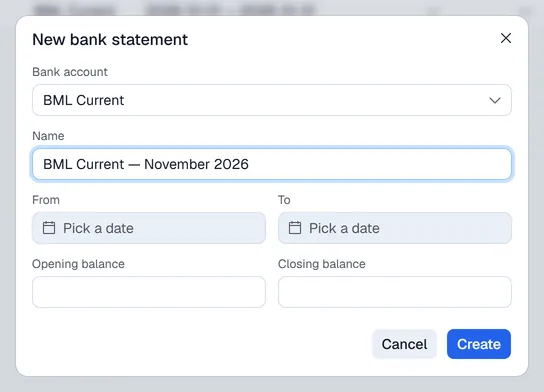
- 1Open Banking → Reconciliation and click New Statement.
- 2Pick the Bank account and give the statement a Name.
- 3Enter From, To, the Opening balance and the Closing balance from the bank statement.
- 4Click Create.

2. Add the lines
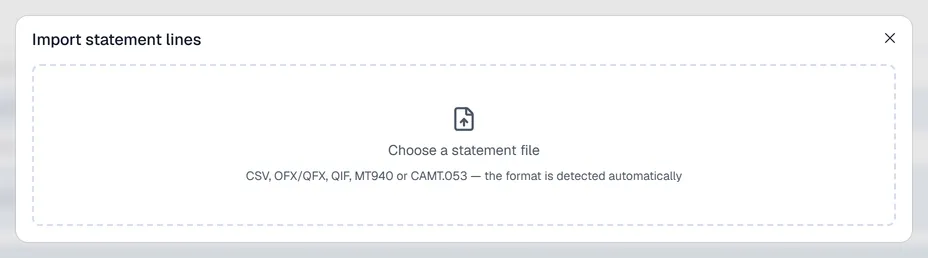
- Import reads a statement file from your bank: CSV, OFX/QFX, QIF, MT940 or CAMT.053, recognised automatically. For a CSV you choose which column holds the date, description, reference and amount (one signed column, or separate deposit and withdrawal columns); tick Remember these columns for this account to skip this next time. Lines already on the account are skipped.
- Add line enters one line by hand. A withdrawal is a negative amount.
- Undo import removes the unmatched lines of the last import.
3. Match
- 1Next to the journal dates, click the refresh button to load the journal lines of the period.
- 2A statement line with a journal line of the same amount within the date window gets a green suggestion under its description. Click it to accept it, or click Match all suggested in the blue banner.
- 3To match by hand, click a statement line, then click the journal lines that add up to it, and click Match. When there is no journal line, type a Match note instead.
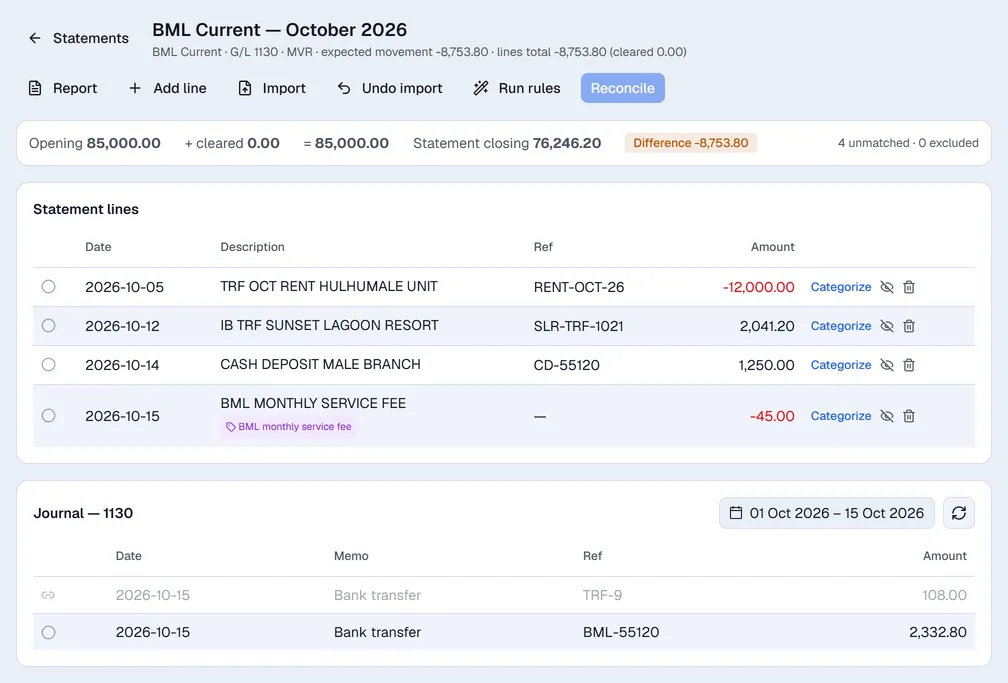

If the journal lines differ from the statement line by a bank fee, Match with bank charge posts the difference to the bank charges account and matches the line in one go.
The strip at the top keeps the sum: Opening plus the cleared lines, compared with the Statement closing balance, and the Difference.
4. Record what is missing (Categorize)
For a line that is not in your books, click Categorize. A payment form opens filled in from the line: amount, date, bank account and description. If a rule recognised the line, its account, customer or vendor is filled in too. Check it and click Post Incoming Payment or Post Outgoing Payment: the payment is posted and the line is matched.
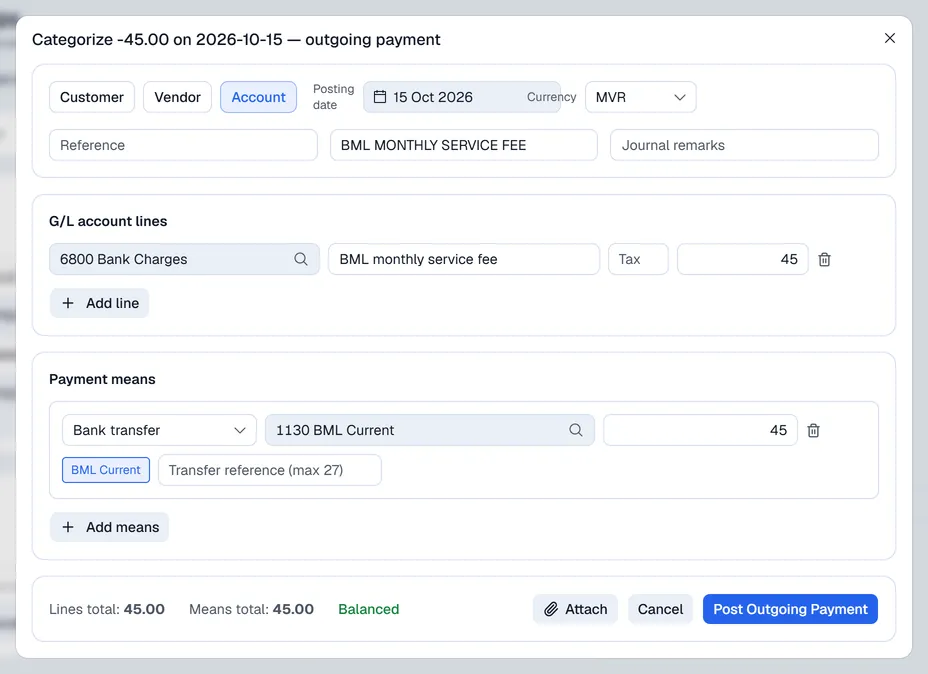
A line that is not a real movement (a duplicate, for example) can be excluded with the crossed-out eye button and brought back later.
5. Reconcile
When every line is matched or excluded, click Reconcile and confirm. The statement shows Reconciled and the account's card on the Overview shows the date. Reopen opens it again if something must change.
Report shows the reconciliation report: the statement closing balance, deposits and withdrawals in the books not yet on the statement, the adjusted bank balance and whether it agrees with the books. Print report prints it.