Timesheets at a glance
Timesheets is where your team records the hours they spend on project tasks, and where managers approve each person's week.
What Timesheets is for
Use Timesheets to record how many hours each person worked on what. Hours are logged against project tasks from the Projects app. Your company can also allow time on service orders and on Helpdesk tickets.
The hours show up where they are useful: on each task (hours logged against the hours allocated), on the project dashboard and in the workload view of Projects.
Who can log time
Hours always belong to an employee. To log time, your Voltix login must be linked to your employee record. If it is not, the Timesheets screen tells you so and you cannot enter hours. See Questions and problems.
The Timesheets screen
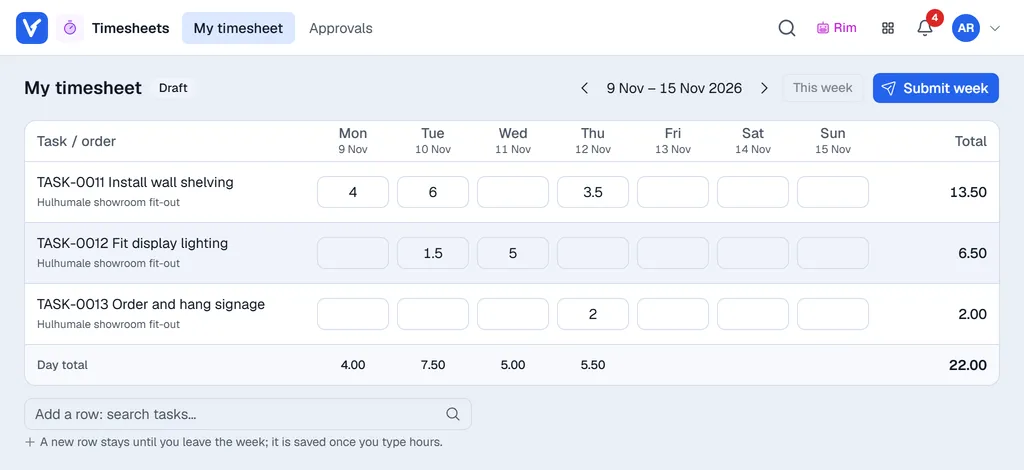
| Part of the screen | What it does |
|---|---|
| My timesheet | Your own week as a grid. Rows are the tasks (or orders) you worked on, columns are Monday to Sunday. |
| Approvals | Only for managers and administrators, and only when your company uses weekly approval. Each person's submitted week, to approve or reject. |
| Arrows and This week | Move one week back or forward, or jump back to the current week. The dates of the week are shown between the arrows. |
| Status badge | Draft, Submitted or Approved: where your week stands. |
| Day total and Total | Hours per day along the bottom, hours per row on the right, and the week's total in the corner. |
How a week flows
- 1Log your hours during the week. See Logging your hours.
- 2Submit the week when it is complete. See Submitting your week.
- 3A manager approves it, or rejects it so you can correct it. See Approving timesheets.
If your company does not use approval, step 1 is all there is: hours stay editable and nothing needs to be submitted.