Working with items
Add work to a project, assign it, set due dates, break it into sub-tasks, comment on it and keep it private.
Add an item
There are three ways:
- Quick add: type in + Add item, press Enter at the bottom of a board column. The item lands in that column.
- New item: the button at the top of an open project. Enter what needs doing and, if you like, the Type, Status (column), Due date, Assignee and High priority, then click Create item. The full item opens straight after.
- From template: creates an item with its sub-tasks from one of your company's task templates.
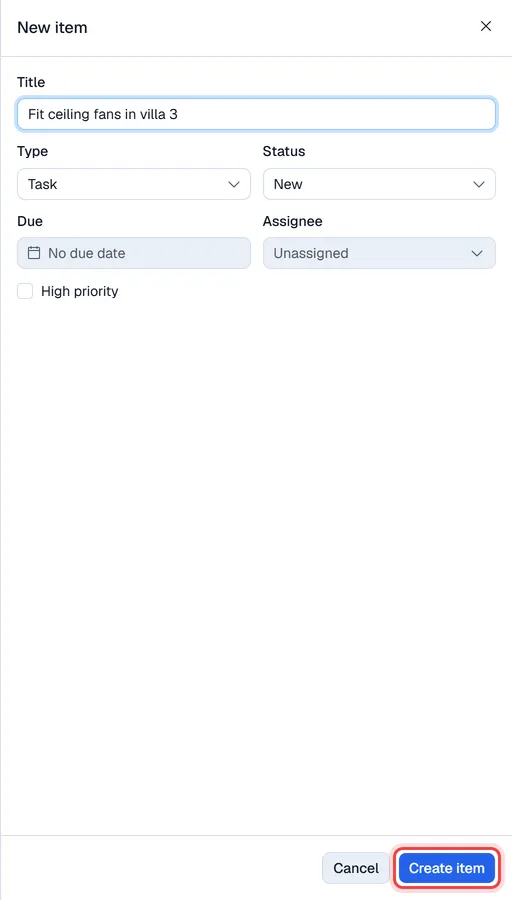
Each item gets the next number from your company's numbering (for example TASK-0012).
Item details
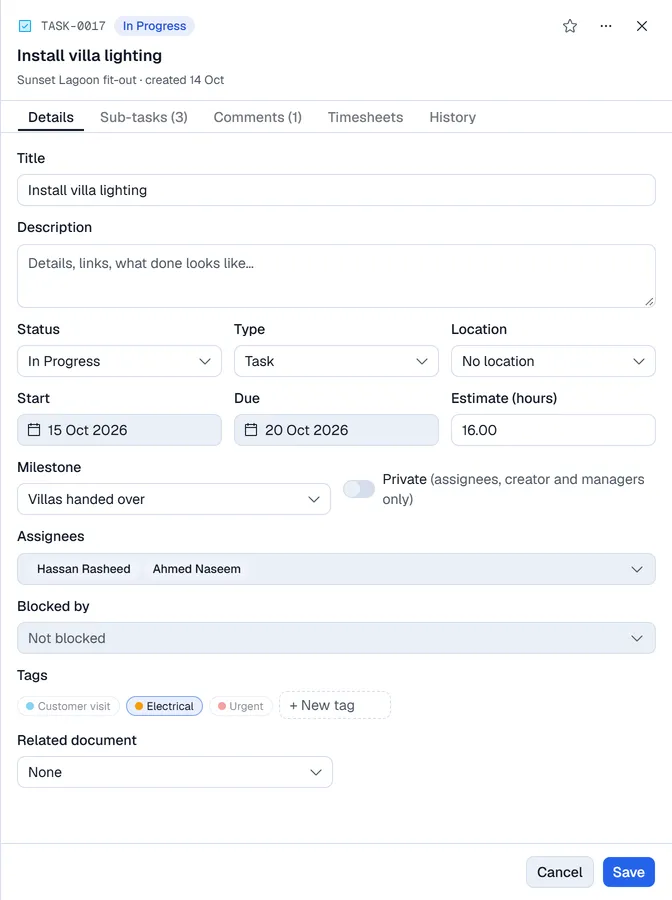
Click an item to open it. The Details tab holds:
| Field | Use |
|---|---|
| Title and description | What needs doing. |
| Status | The column the item is in. |
| Type | The kind of work. Only the types this project uses are listed. |
| Location | The shop or site the work belongs to, if any. |
| Start and Due | Dates. Overdue items are flagged in red on the board and in My tasks. |
| Estimate (hours) | Planned hours. Used by the Workload view and the dashboard. |
| Milestone | Which milestone the item counts towards. |
| Private | Switch it on so that only the assignees, the person who created it, and admins and managers can see it. |
| Blocked by | Pick the other items that must be finished first. While any of them is still open, the card shows Blocked. |
| Assignees | One or more employees. |
| Tags | Click a tag to add or remove it. |
| Related document | Link the item to a sales order, quotation, invoice / receipt, rental order, CRM opportunity, purchase order or helpdesk ticket: choose the kind, then search by number. |
The star at the top right marks the item as high priority. Click Save to keep your changes.
Sub-tasks
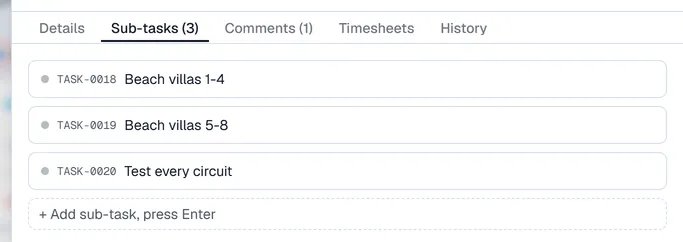
On the Sub-tasks tab, type in + Add sub-task, press Enter. Each sub-task is a small item of its own: click it to open it, give it a due date or move it to a done column. The card on the board shows how many sub-tasks are done, for example 1/3.
Comments
On the Comments tab, write in Write a comment… and click Add comment. Comments are shown with the author and time, and the number of comments appears on the card.
History
When Activity history is switched on for your company, the History tab shows who moved, reassigned or changed the item, and when.
Logging time
When your company uses Timesheets, an item has a Timesheets tab. Enter the Date, Hours and a Note and click Log time, or use Start timer and Stop timer to fill in the hours. The tab shows the hours logged against the item's estimate. See Timesheets.
Move, finish or delete an item
- Drag the card to another column on the board, or change its Status.
- An item is finished when it is in a column whose category is Done. A Cancelled column closes the item without counting it as done.
- Admins and managers can delete an item with Delete item in the … menu at the top of the item. Its sub-tasks and comments are deleted too.