Set up the online shop
Open the shop, choose how orders become sales orders, set pickup and delivery, payment methods (including BML Connect), customer accounts and returns.
With the shop open, visitors add products from the website catalogue to a cart, check out and place an order. You need the Websites: settings permission for the shop settings. Put products on the website first (see Products on the website).
Open Shop → Shop settings in the menu at the top. Click Save (or Save shop settings at the bottom) when you are done.
Open the shop
Tick the switch next to Online shop so it reads Shop is open, and save.
Sales orders
| Setting | What it does |
|---|---|
| POS terminal for web orders | Its tax group, location and sales-order numbering are used. |
| Customer on the sales orders | Empty = the terminal's default customer. The buyer's name, phone and address go on each order. |
| Recorded as created by (automatic orders) | The user shown on orders that are created automatically. |
| Create the sales order as soon as an online payment is confirmed | Paid online orders become sales orders without waiting for you. |
| Allow ordering items that are out of stock | Off: quantities above the website warehouse's stock are refused. |
| Minimum order, Max quantity per item | Limits at checkout. |
| Email new orders to | An address that gets each new order. |
Prices at checkout always come from the website's price list and are checked again when the order is placed. Orders that are waiting for payment or confirmation hold their stock for a while, so two customers cannot buy the same last item.
Pickup and delivery
- Customers can pick up their order, with Where and when (shown at checkout).
- We deliver: add an area per line (Area, Charge, Free over) with Add an area. Choose the Item that carries the delivery charge on sales orders; it is needed when any area has a charge.
Payment
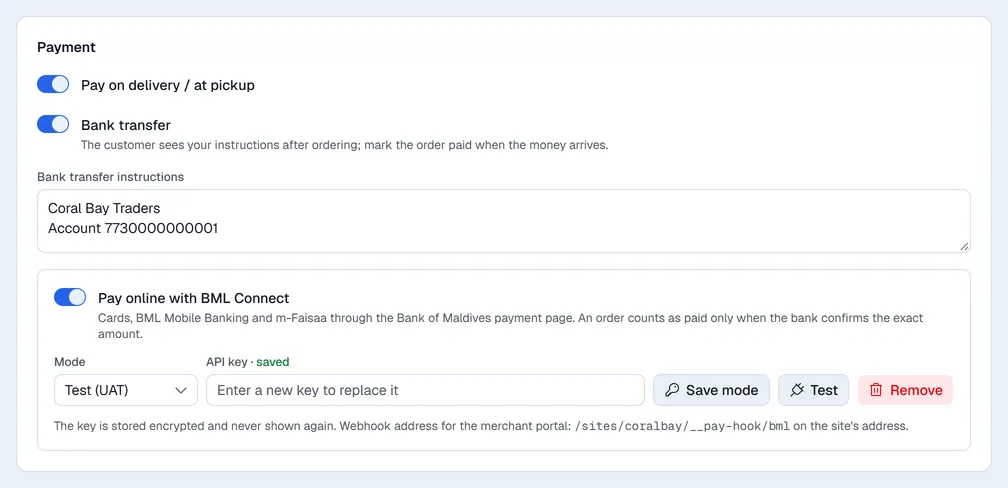
- Pay on delivery / at pickup.
- Bank transfer: enter the Bank transfer instructions. The customer sees them after ordering; you mark the order paid when the money arrives.
- Pay online with BML Connect: cards, BML Mobile Banking and m-Faisaa through the Bank of Maldives payment page. Choose the Mode (Test (UAT) or Live), paste the API key from the BML merchant portal and click Save key; Test checks it. The key is stored encrypted and never shown again. The help text under it gives the webhook address to enter in the merchant portal.
Customer accounts
- Customers can sign in: customers sign in with a link sent by email (no passwords), see their orders and save their details. Outgoing mail must be set up for your company.
- Business customers can order "on account": only accounts you link to a business partner under Shop → Customers. Their orders are made for that customer.
In Shop → Customers, find a customer who signed in, link them to a business partner, unlink them, or block them (they are signed out and cannot sign in again). This needs the Websites: orders permission.
Returns, terms and checkout note
- Customers can request a return from their order page: each request becomes a Helpdesk ticket for the chosen Helpdesk team, within the Days after ordering you set, with your Note shown with the form.
- Terms and conditions page: when set, customers must accept them to order.
- Note shown at checkout.
Next: Handle web orders.