General settings
The lists the whole company shares - currencies, exchange rates, partner groups and payment terms, tax groups, banks and locations.
Show the steps for
Open Settings → General. Each list has its own tab.
Currencies
The currencies you sell and buy in. Your base currency is marked Base. Click Add currency to add one, or the pencil to change it.
Exchange rates
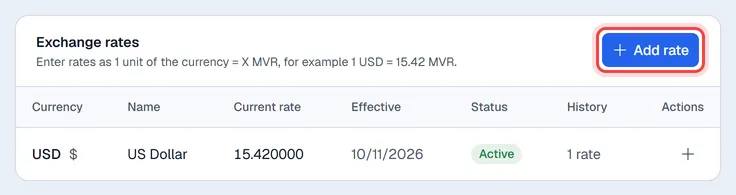
Enter each rate as 1 unit of the currency = X of your base currency, for example 1 USD = 15.42 MVR. Click Add rate, pick the currency, the rate and the Effective date. A currency can have several rates with different dates; the table shows the Current rate, and History opens the earlier ones.
Partner groups and payment terms
Partner groups organise customers and vendors (for example Retail, Wholesale). Payment terms, on the same tab, are the credit terms you give customers or get from vendors.
Tax groups
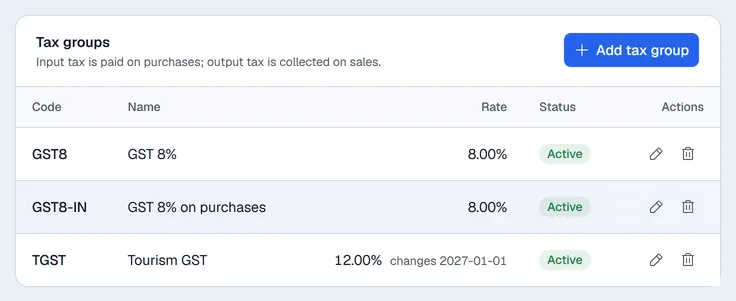
A tax group is a tax rate with a code, for example GST8 at 8%. Output Tax groups are for sales, Input Tax groups for purchases. Click Add tax group, or the pencil to change one.
Rate changes with effective dates
When a tax rate changes by law, do not edit the old rate: add the new one with the date it starts.
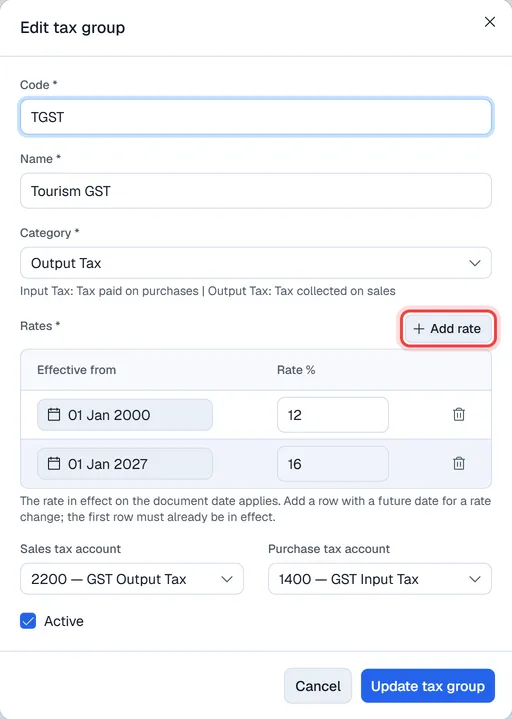
- 1Click the pencil on the tax group.
- 2Under Rates, click Add rate.
- 3Enter the Effective from date and the new Rate %.
- 4Click Update tax group.
Until that date, sales keep using the current rate. On the date, the new rate takes over by itself. The table shows a small grey changes <date> next to a group with a rate still to come; point at it to see the whole history.
The first rate must already be in effect, and two rates cannot share a date.
Tax accounts
With the Finance app on, each tax group also has a Sales tax account and a Purchase tax account: the accounts tax is posted to. The table shows them under Tax accounts (sales / purchase). Leave them as Not set to use Finance's default tax accounts.
Banks
The banks you accept cheques and transfers from. Click Add bank and enter its name and country.
The banks from SAP, used for cheque payments. Click Sync from SAP to update the list.
Locations
Locations are your shops, branches and offices. They decide which documents and terminals users see (see Users and access) and are printed on documents.
- 1Click Add location.
- 2Enter the Location name, Address and Phone number.
- 3Save.
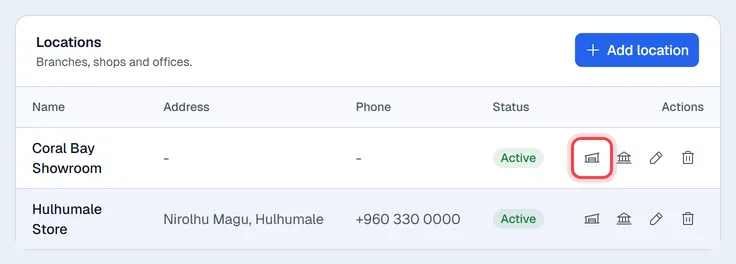
The buttons on each location:
- Warehouse access: tick the warehouses this location may use, and in which apps (POS, Inventory, Purchasing, Reports). With nothing ticked, the location sees every warehouse the company allows. Copy from location… copies another location's choices. Click Save access.
- Header and footer notes: the letterhead and notes printed on this location's invoices, quotations, sales orders, delivery notes and payment receipts. Leave them empty to use the company details.
- Pencil and bin: change or delete the location.