Delivery notes
A delivery note is the printed record of what left your premises against a sales order, signed by the person who received it.
Show the steps for
Deliver a sales order
- 1Open the sales order from Sales → Sales orders.
- 2Click Deliver.
- 3For each line, the dialog shows what was ordered and what is still to deliver. In Deliver now, set the quantity leaving today with − and + or by typing it; it is filled in with everything still to deliver, so lower it for a part delivery.
- 4Fill in Received by (the person who takes the goods) and any Notes.
- 5Click Save delivery note. Voltix offers to print it straight away.
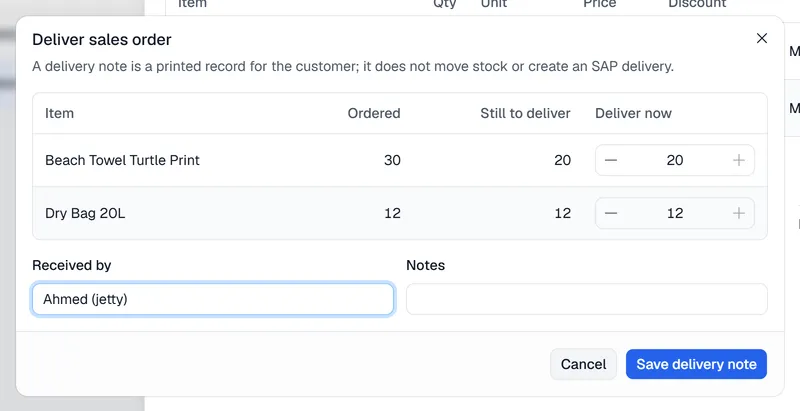
The order now shows what has been delivered and what is still open. You can deliver the rest later with another delivery note.
Print or cancel a delivery note
Open the order's Deliveries tab. Every delivery note is listed with its number, date and items. Click Print to print it again, or Cancel on a delivery note that was made by mistake; its quantities count as not delivered again.
What a delivery note does not do
A delivery note is a printed record for your customer and your team.
It is not sent to SAP and does not move stock. Stock is reduced when the invoice is posted to SAP.
It does not change stock levels.
It is not sent to QuickBooks and does not change stock levels.