Set up a printer and its rules
Add a network printer, send a test page, then add rules that say which documents print on it, at what size and how many copies.
What the printer needs
- PDF Direct Print support. Many office and business laser printers have it (for example many Konica Minolta, Brother, HP, Kyocera and Ricoh models). Check the printer's manual or ask your IT supplier.
- An address the Voltix server can reach, with port 9100 open (the usual raw printing port).
Important. Voltix runs on a server, not on your shop computers, so the printer must be reachable from the Voltix server. Your IT supplier usually has to arrange this before the test print works.
1. Add the printer
- 1Open Automations and stay on Printers.
- 2Click Add printer. A panel opens on the right.
- 3Fill in: - Name: something people recognise, for example Head office dispatch printer. - Host or IP address: the printer's address. - Port: leave 9100 unless your IT supplier says otherwise. - On (documents print here): keep it on. Switch it off to stop all printing to this printer without deleting it.
- 4Click Add printer. The panel stays open so you can send a test page and add rules.
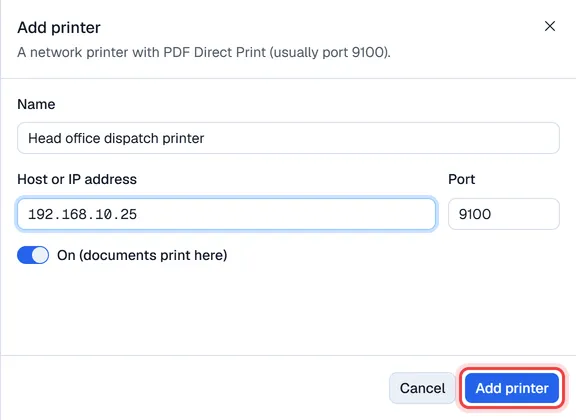
To change a printer later, click its row: the same panel opens; change the fields and click Save. Delete at the bottom of the panel (or in the row's … menu) removes it, together with its rules and its job history.
2. Send a test print
Click Test print on the printer's row (or at the bottom of its panel) and wait by the printer. Voltix sends a one-page test document straight away.
- If it works, a message says the page was sent. Check that it came out.
- If it fails, the message gives the reason, for example the connection timed out or was refused. That usually means the address is wrong, the printer is off, or the Voltix server cannot reach it.

Tip. Page "sent" but nothing printed? The printer probably does not support PDF Direct Print, or raw printing is switched off in the printer's own settings.
3. Add rules
A printer prints nothing until it has rules.
- 1Click the printer's row to open its panel, then click Add rule under What prints here.
- 2Choose: - Document: Inventory transfer, Transfer request or Goods issue. - Warehouse: the warehouse this rule is for (see What Automations does for which warehouse counts for each document). - Paper size: A4 or A5. - Copies: 1 to 5.
- 3Click Add rule.
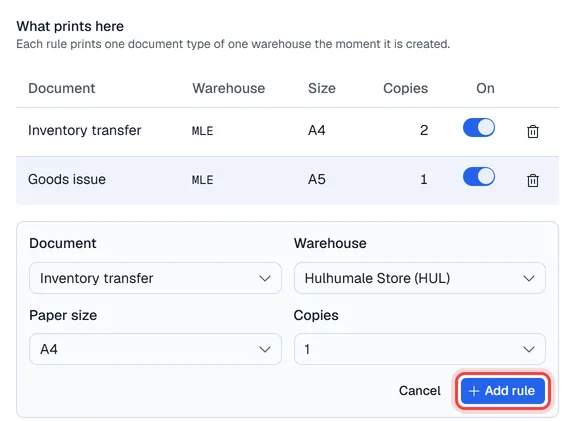
Each rule is listed under What prints here with its warehouse code, size and copies. Use the On switch to turn a rule off or on again, or the bin to remove it.
Note. Several rules can match one document, for example a transfer whose source and destination warehouses both have a printer. Each matching rule prints its own copies.