Sales at a glance
The Sales app is for back-office selling. Prepare quotations, turn them into sales orders, deliver, invoice and take returns, with approvals when a discount or a credit sale needs a second look.
Show the steps for
What Sales is for
Use Sales when a sale is prepared at a desk rather than rung up at the counter: a quotation for a hotel, a large order for a resort, an invoice on credit for a regular customer. The Point of Sale is still the place for walk-in customers paying at the till.
Sales and the Point of Sale share the same documents. A quotation made in Sales can be opened in the POS and the other way round, and both appear in the same reports.
How a sale flows
- 1Quotation. You offer prices to the customer. It has a validity period and can be printed or e-mailed.
- 2Sales order. The customer confirms. The order records what you will deliver.
- 3Delivery note. Optional. A printed record of what left the shop, signed by the person who received it.
- 4Invoice. The customer pays now, or the amount goes on their account and is collected later.
- 5Return. Goods come back against an invoice and the customer is refunded or credited.
You can start at any step. An invoice can be made directly, without a quotation or sales order. Every document shows where it came from and what was made from it, so you can follow a sale from the first quotation to the last return.
The Sales screen
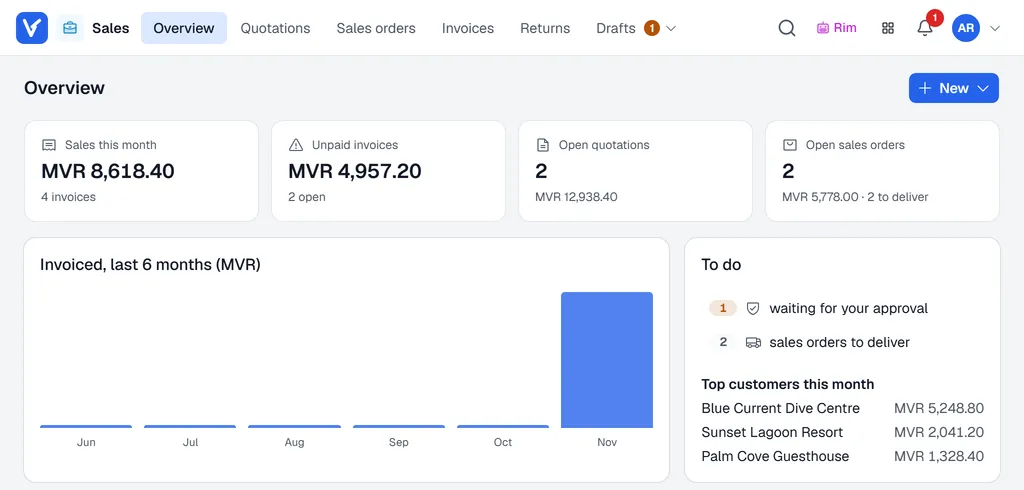
The Overview shows this month's sales, unpaid invoices, open quotations and open sales orders, a six-month chart and your To do list. Click any figure or to-do line to open that list, already filtered the same way: Unpaid invoices opens the invoices that are still owed, Open quotations the quotations still open.
The menus at the top

| Menu | What you find there |
|---|---|
| Overview | The figures and your to-do list. |
| Quotations, Sales orders, Invoices, Returns | The documents that have been created. Click one to open it. |
| Drafts → My drafts | Documents you started but have not created yet, including ones waiting for approval. |
| Drafts → Approvals | Only for approvers: documents waiting for their decision. A number shows how many. |
| Drafts → To review | Incoming drafts, for example ones Rim prepared from an e-mail, that need a check first. |
| Drafts → Rim Inbox | Every e-mail Rim read and what became of it. See Rim Inbox. |
Use New at the top right of a list to start a quotation, sales order or invoice. Hover the Voltix logo at the top left to go back to your home page, or click the Apps button (the small grid next to the bell) to jump straight to another app.
Find documents in a list
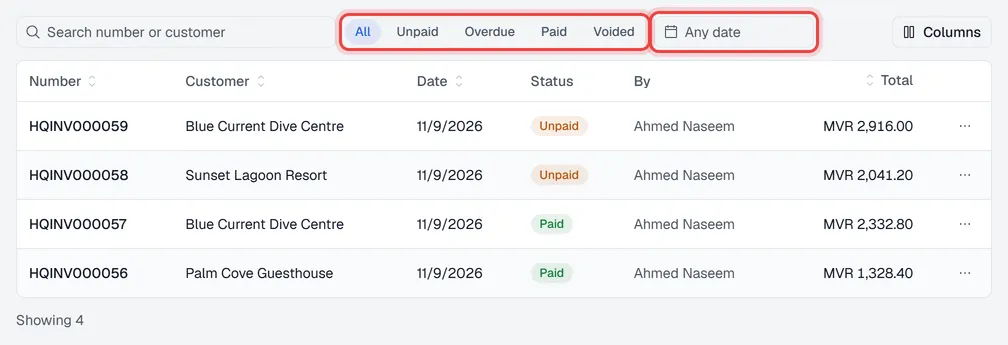
- Search by number or customer.
- Quick filters narrow the list: for invoices Unpaid, Overdue, Paid and Voided; for quotations Open, Past validity, Converted and Cancelled; for sales orders Open, To deliver and Closed.
- Any date picks a date range, with shortcuts such as This month or Last 30 days. Click the cross next to it to clear the dates.
- Click a column heading to sort by it; click again to reverse the order. Columns hides or shows columns.
- The … button at the end of a row prints, downloads or duplicates that document without opening it.
Click a row to open the document in a panel on the right, so you keep your place in the list. The arrow at the top of the panel opens it as a full page.
Drafts and created documents
Everything starts as a draft. A draft can be changed freely and is only visible to you (and approvers). When you click Create quotation, Create sales order or Post invoice, the draft becomes a real document with its own number.
Created documents are sent to SAP Business One first. The quotation, sales order or invoice gets its SAP document number at that moment. If SAP refuses the document, it stays a draft and you see SAP's message.
Created documents are saved in Voltix with the next number from your Sales profile. If your company uses the Finance app, each invoice and payment also creates its journal entries automatically.
Created documents are saved in Voltix with the next number from your Sales profile. Invoices and quotations are sent to QuickBooks automatically within about five minutes. Sales orders, delivery notes and returns stay in Voltix.
| Status | Meaning |
|---|---|
| Draft | Started, not created yet. You can still change everything. |
| Waiting for approval | A discount or a credit sale needs an approver. You are notified when it is decided. |
| Approved | An approver agreed. You can now create or post it. |
| Rejected | An approver said no. The reason is shown on the document. |
| Posted | Created. The document has its number. Open quotations and sales orders can still be edited (see each page). |
Where to go next
- Setting up Sales: profiles, numbering, payment methods and the company rules.
- Create a quotation: your first document, step by step.