Employees at a glance
Keep one record for each person who works for the company: department, manager, skills, contracts and the expiry dates of passports, work permits and visas.
What Employees is for
The Employees app is your staff list. Each person has a record with their job details, who they report to, their resume and skills. People allowed to see private information also see personal details, contracts and documents.
Employee records are kept in Voltix only. They are not sent to SAP Business One or QuickBooks.
Note. The Employees app is for managers and administrators. Cashiers do not see it.
The Employees screen
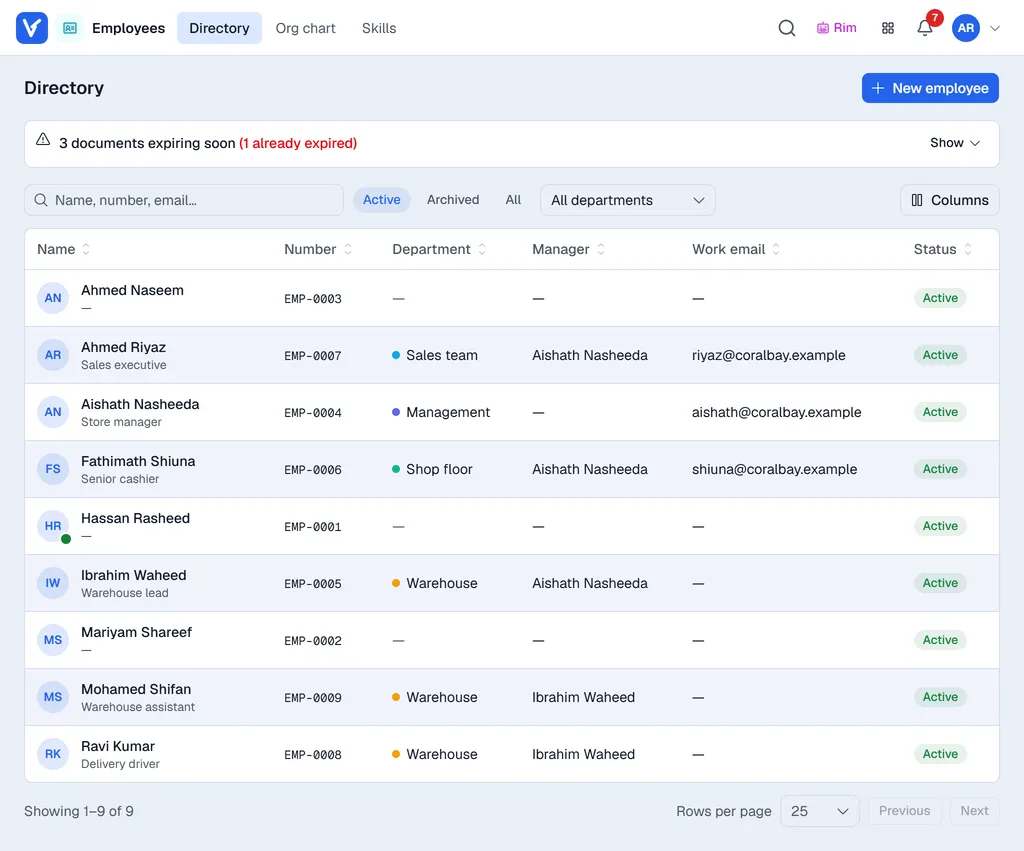
| Part of the screen | What it does |
|---|---|
| documents expiring soon banner | Passports, work permits and visas that expire soon or have already expired. Click Show to list them. Only shown to people who may see private details. |
| Name, number, email… | Finds a person by name, employee number or e-mail. |
| Active / Archived / All | Which people the list shows. Archived people are those who have left. |
| All departments | Pick a department to show only its people. The number is the head count, sub-departments included. |
| Columns | Shows or hides columns such as Phone and Type. |
| Staff list | Click a row to open the record. A green dot on the photo means the person is signed in to Voltix right now. On a phone each person is a card. |
| New employee | Starts a new record. See Add and edit employees. |
The menus along the top:
| Menu | What you find there |
|---|---|
| Directory | The staff list. |
| Org chart | Who reports to whom, built from each person's Manager. |
| Skills | Everyone's skills grouped by skill type. See Skills and resume. |
The org chart
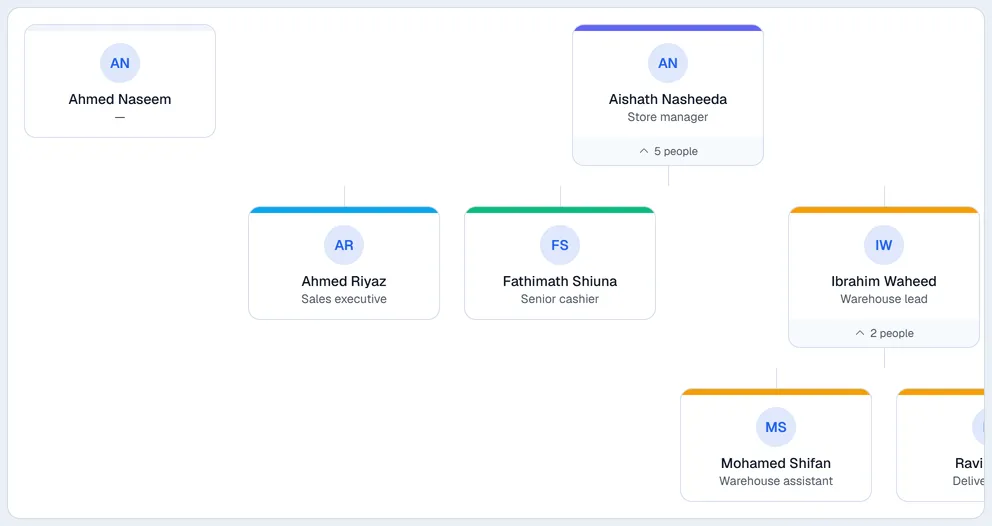
Click a card to open that person. Click the count under a card (for example 5 people) to fold or unfold the people below. People without a manager appear on the top row.
Where to go next
- Setting up Employees: departments, positions, numbering and expiry alerts.
- Add and edit employees: your first record, step by step.